Kid's End: Installation and Uninstallation
This section corresponds to theWindows computers used by children on a daily basisClients on (unlike apps that parents have installed on their phones). Install the package from the 官网Download page Fetched.
This software fully takes into account the laws and regulations of various countries on the protection of minors, as well as the concerns of parents about the use of computers by children and adolescents, so a variety of functions have been designed to protect the privacy and safety of minors. Comply with the privacy provisions of each country, and do not collect, store, or use the privacy information of any minor.
Operating environment (extracted from instructions)
| project | Minimum Configuration | System Values |
|---|---|---|
| 操作系统 | Windows 10 64-bit | Windows 10 64-bit |
| Processor | Dual-core 2.0 GHz | Quad-core 2.5 GHz and above |
| Memory | 4 GB | 8 GB or more |
| Disk space | 200 MB available | More than 1 GB (for easy screenshot storage) |
| 网络 | Internet required | Stable broadband |
Installation steps
- Obtained from the official website or installation media .zip Install the package. Extract the exe to execute the security package and double-click Run.
- Double-click to run; the installer supports multiple languages, and the interface language is automatically selected according to the Windows system language.
- After the installation is completed, the software will start automatically, and the main interface or tray icon will appear.
- Setup required for first startupAt least 6 digitsManage passwords and fill in thePhone and email(Please be sure to be correct). Mainland China is generally retrieved by text message, and other regions are retrieved by email verification code.
- You will be prompted whether to bind the phone management terminal, you can bind or not. If you have downloaded the mobile phone management terminal, click the "+" number on the mobile phone to get the binding code, and enter it on the computer to complete the binding. If you haven't installed the parent terminal yet, you can also set up the local rules on this computer first, and once the parent terminal is installed and connected to the account, you can remotely adjust it on your own device.
- Please follow the prompts to complete the first run of version 1.0显卡检测(See "Graphics Card Detection and Live Streaming Monitoring" below), so that multi-dimensional monitoring and live broadcast scene recognition are more accurate. Since version 1.1, for ease of operation, the graphics card detection function has been integrated into the software, no separate operation is required.
Спосіб деінсталяції
- 也可通Conclua a desinstalação acedendo a → Aplicações de Definições do Windows.
- Please click on the bottom left side of the software interface"Software Uninstallation", press the wizard to complete the uninstallation.
Parent Mobile (brief)
Parents are invited to visitown mobile phoneInstall the Admin app on (different from the program on your child's computer). Scan the code or download the app store to register and log in; see the "Parent App Instructions" at the bottom of this page for details.
Device Binding and System Settings
设备绑定与管理
Generated by Parent Mobile App 6-digit dynamic binding code, establish a trust relationship after inputting on the child's computer. Once connected, parents can view their online status remotely, receive notifications, and take control. Bind up to per PCTwo mobile phones; The first account linked is the primary account, then added as a secondary account.
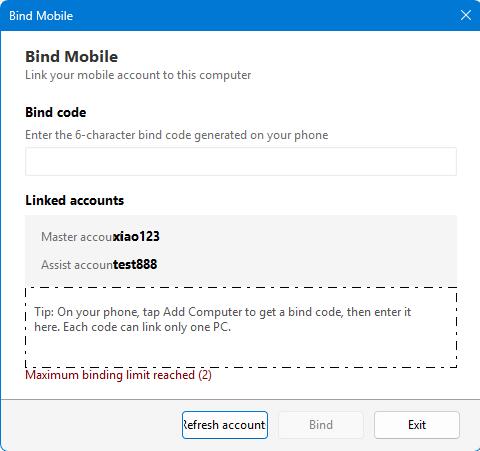
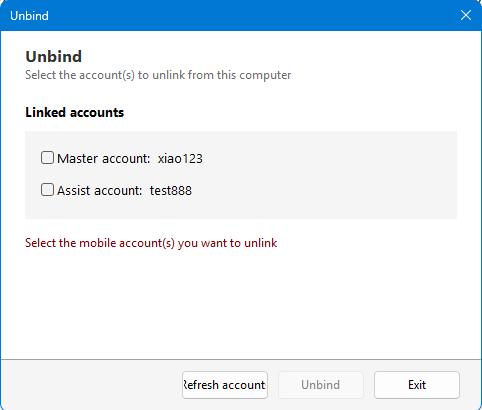
Steps
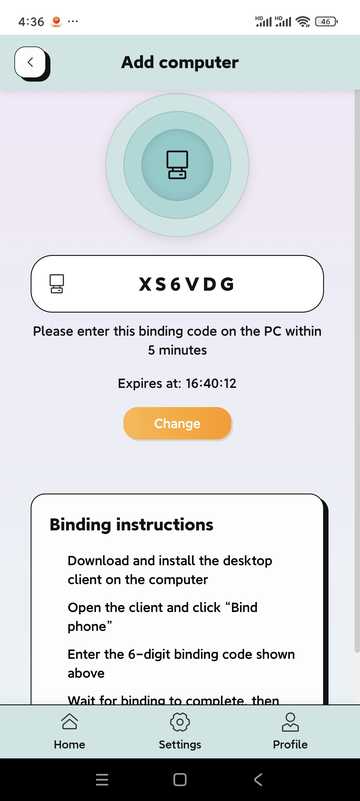
- Click "Add Computer" in the parent's mobile app to get the binding code.
- Click "Bind phone" on the main screen of the child's computer.
- Enter the binding code and click Bind.
- When you need to unbind, enter the "Unbind" screen, enter the password and click "Unbind".
- The binding code is time-limited, please complete the operation within the validity period.
- After unbinding, the computer is no longer controlled remotely by the mobile phone, butNative Saved Policieswill remain.
系统set up
Configure global monitoring policies in this set: keywords, OCR, multi-dimensional monitoring, actions performed in case of abnormalities, network/browser restrictions, timed screenshots, tray display, etc.
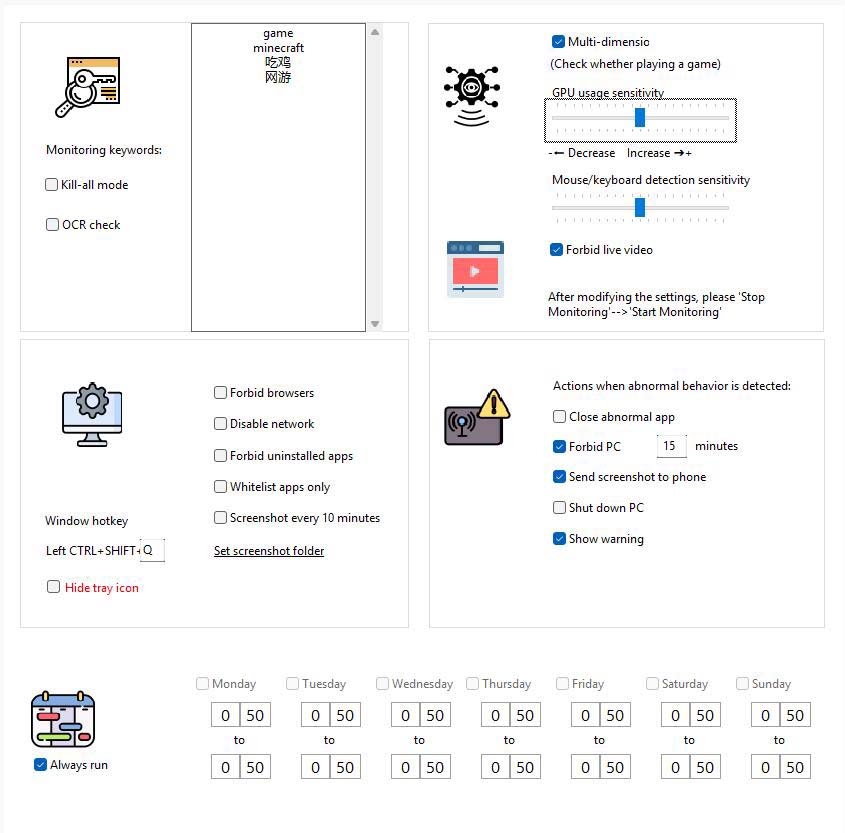
Key points of the interface (extracted from the instructions)
- Monitoring keywords:Window title or screen text to be monitored (e.g. “Game”, Game English name, etc.).
- Kill Mode:Keyword detection for all windows (not exempt from whitelisting).
- OCR Testing:Regularly identify the screen area text near the mouse and compare it to keywords.
- Multidimensional monitoring:结合显卡使用及用户操作行for等综合判断游戏行for;建议常用学习/办公软件加入白名单以免误判。
- Sensitivity of keyboard and mouse:Modulate Behavioral Analysis Sensitivity.
- AI检测是no观看直播视频:Block live gaming apps. Note: This feature is overly complex to implement with low system occupancy and there is currently a possibility of miscalculation. In our tests, more than 95% of livestreams will be recognized as normal, but a very small part of normal operation may be recognized as livestreams. So please turn it on or off as needed.
- Action when an abnormality is found:Such as closing abnormal applications, disabling computers, sending screenshots to mobile phones, shutting down, etc.; you can check whether to display a warning. If you do not display a warning, if you find that abnormal behavior is captured, you will directly perform control actions. If an alert is displayed, the user is prompted and the control action is performed after the countdown has ended.
- Whitelist software only:When turned on, only programs in the whitelist are allowed to run.
- Do not display tray icon/Disable network/Disable browser/Scheduled screenshots:Check the box according to the actual needs of the family; the screenshot directory can be specified in the settings.
Steps
- Go to System Settings.
- Fill in keywords as needed, check monitoring items, set sensitivity and abnormal actions.
- Click “Save Settings” to take effect; click “Stop Monitoring” temporarily.
Manage suggestions
Create a standard Windows user for your child
If your child already has a high level of computer talent and is approaching the entry level of a professional, he may be willing to try various ways to bypass your controls. You can create a standard Windows user for it, and you use the Windows admin account yourself. This gives you more control over your child's computer usage.
Horários, sites, listas e registos
List Management (Whitelist)
The software in the whitelist will not be recognized as game software; it is suitable for adding common learning and office programs.
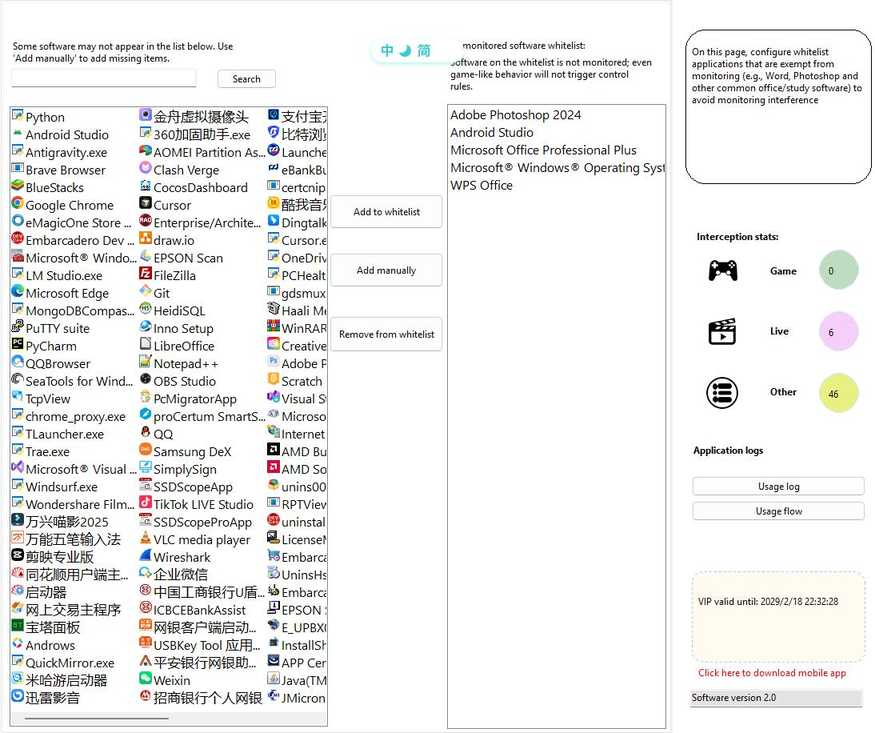
- Go to List Management.
- Lookup:The search box filter already has a whitelist.
- Add to:Select from the candidate list, or enter the software name manually, or select .exe from the Add Your Own.
- Delete:Delete or double-click delete after selecting an entry in the list on the left.
- Your changes will take effect when you save or switch pages.
Computer usage schedule
set upEntire computerAvailable hours; unavailable hours can lock the interface and prevent further use.
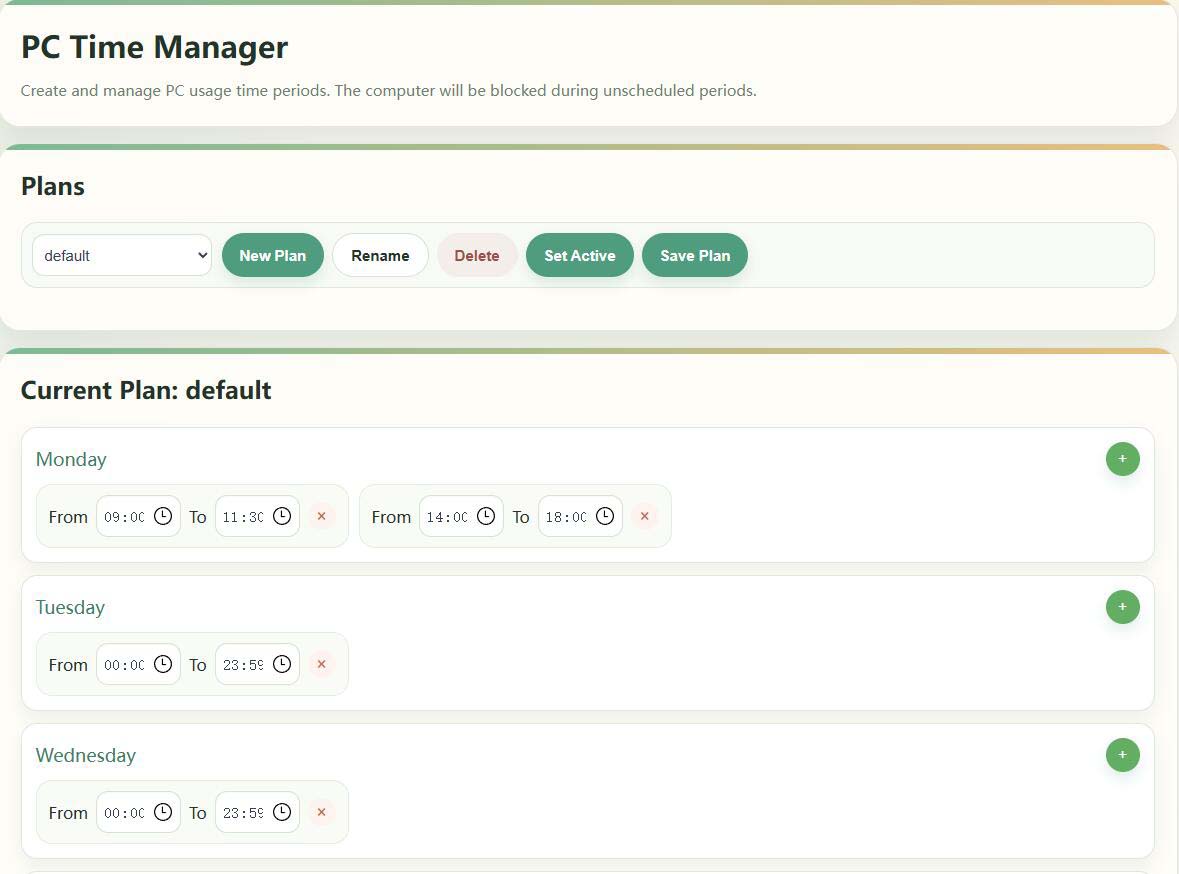
- Go to Computer Usage Schedule.
- Create/Rename/Delete a Schedule in the Schedule Schedule and set it as激活(Showing Active).
- Set multiple hours of availability by week on the right, effective after saving.
If it is temporarily released, you can use "Stop Monitoring" on the computer or mobile phone; if the screen is not locked before the lock time, please check the current activation plan and system time (see the FAQ in the manual).
软件使用日程
forSpecify SoftwareSet a separate window for when you can run (for example, allow gaming clients only for certain hours on weekends).
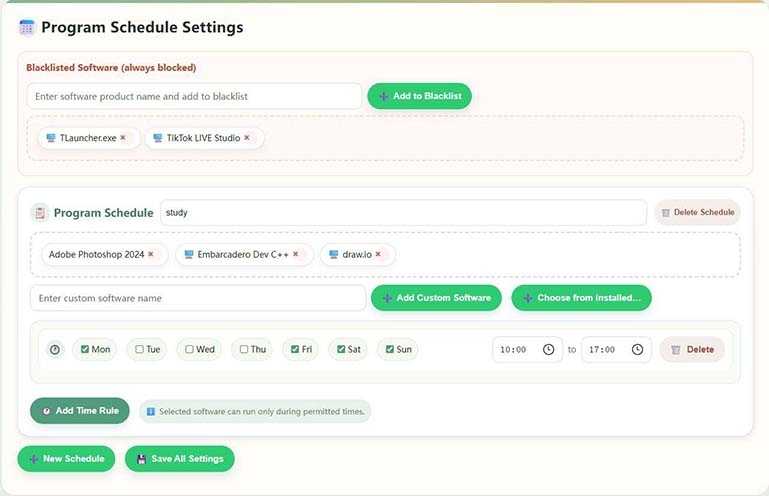
- Go to the Software Usage Schedule.
- Check the programs you want to control in Installed Software (you can select more than one).
- Adding weeks and start and end times to the Program Calendar Settings allows you to set multiple rules for the same software.
- If the list does not have a target program, you can either "Enter a custom software name" or add it using the .exe/product name description.
- Click “Save Settings” when you're done. Whitelisted software is exempt from this restriction.
Domain Management (Website Access Control)
Manage accessible websites: Built-in categorized libraries for games/videos, support full ban or presstime rulesLimited access.
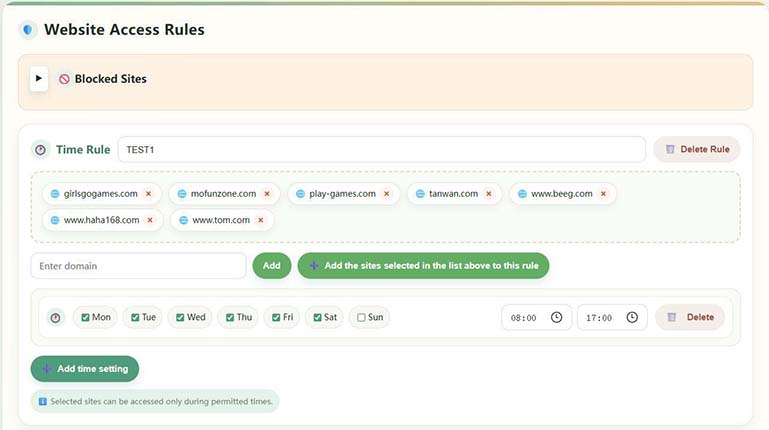
- Go to Domain Management.
- Browse the built-in categories and custom websites on the left, and filter the positioning with keywords.
- When there is no preset domain name, use "Add a custom website".
- Save after configuring Full Ban or Time Rule; sites within the rule can only be opened during licensed hours.
Built-in common gaming sites for quick configuration; fill in the full domain name when customizing.
Graphics card detection and live broadcast monitoring
Used to establish a GPU-occupied baseline and improve the recognition accuracy of games/live broadcasts with high loads;After installing or replacing the graphics card for the first timeIt is recommended to implement it once.

- Go to Graphics Testing.
- Fill in the "Enter the name of the live site" to fill in the commonly used live stations (such as tiger teeth, etc.).
- By clicking "Start Setup", the system will calibrate the GPU; do not run other high-occupancy graphics programs during the process.
- Approximately 2-3 minutes to complete and prompt for success.
Application logging and screenshot viewing
View the length of use of each software, the number of starts, the time axis flow chart, and (if it is turned on) the automatic screenshots for ease of postmortem review.
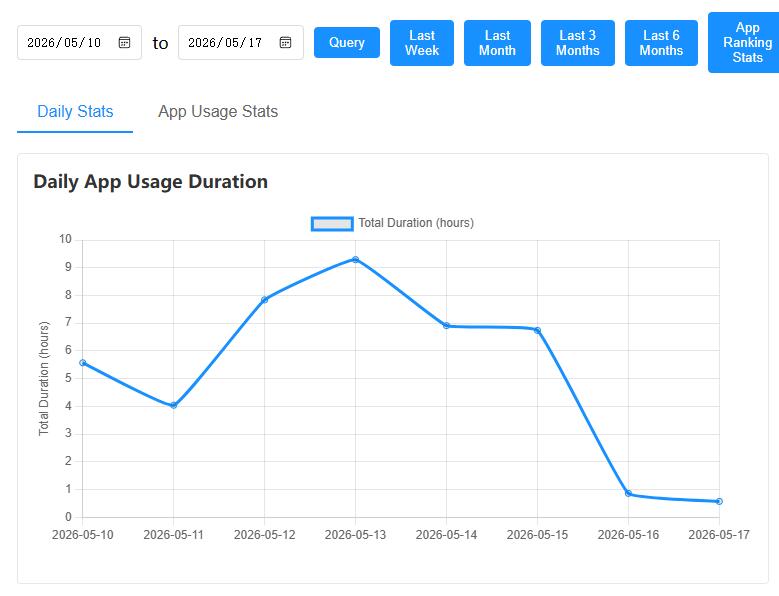
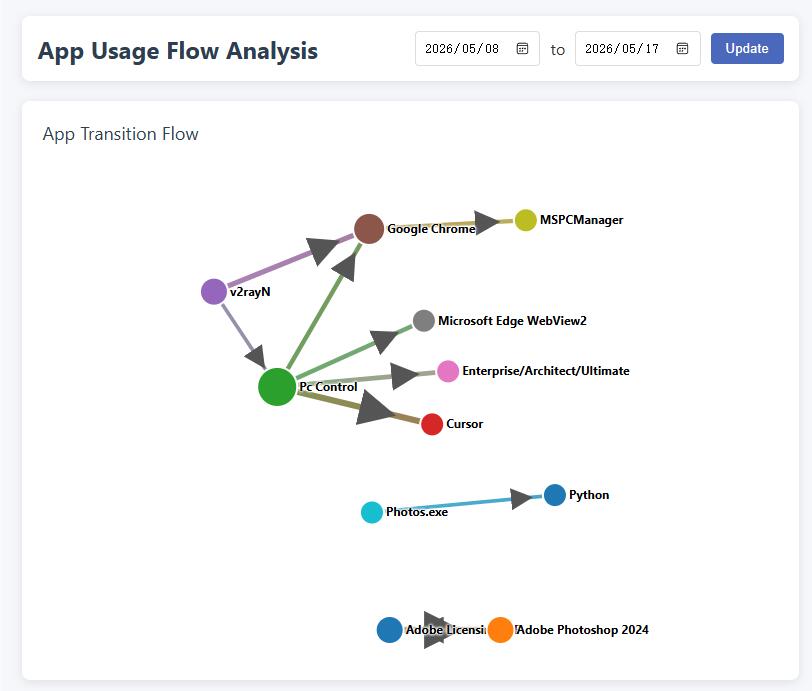
- Software Usage Record:View statistics in Application→ History Software Usage History.
- Using Flowcharts:View app toggles and associations by timeline.
- Browse screenshots:Automatic screenshots need to be turned on in the system settings; the directory is customizable and it is recommended to clean it regularly to save disk.
Account Security & Membership (Desktop)
- Change password:Go to "Change Password"; forgetting will affect sensitive operations such as unbinding.
- Affiliate infoThe VIP expiration date can be viewed in the "Registration Information" area of the main screen, and some advanced capabilities may be limited after the expiration.
- Download on your phone:Click "Click here to download the mobile app" to get the parent app.
- RemoveSee “Device Binding” above.
家长 APP 使用说明
The following mappings are installed inParents own mobile phoneThe management side of the is used in conjunction with the PC side of the child's computer; complex rules can also be configured in the local management interface of the computer.
Instructions The text refers to the "Instructions for Use of the Little Lamb Anti-Addiction App" in the copyright document; the interface is subject to the actual version.
A. Software Overview
This app helps parents remotely understand and manage their children's computer usage on their mobile phones: view screenshots, set time periods, control websites and keywords, receive alerts, etc. The PC side needs to be installed on the computer used by the child and be able to connect to the Internet.
Privacy NoteThe data of the PC and this app are mainly stored in your own device, and the system does not transfer your personal privacy content to the operator's server. The idea of peer-to-peer communication between the mobile phone and the computer is more secure.
Key Features
- Device Binding and Management: Adding and Managing Bound Computers
- Real-time viewing: See computer screenshots for usage
- Time control: usage duration, schedule and time management
- Content Control: Website and App Rules, Keywords and Behavioral Monitoring Linkage
- Message Center: Receive control events and system messages
- Statistical report: Usage duration and application usage overview, and timely intervention for control
- Temporary control: shutdown, timing, remote locking, screenshots, etc.
II. Quick Start
2.1 User Registration
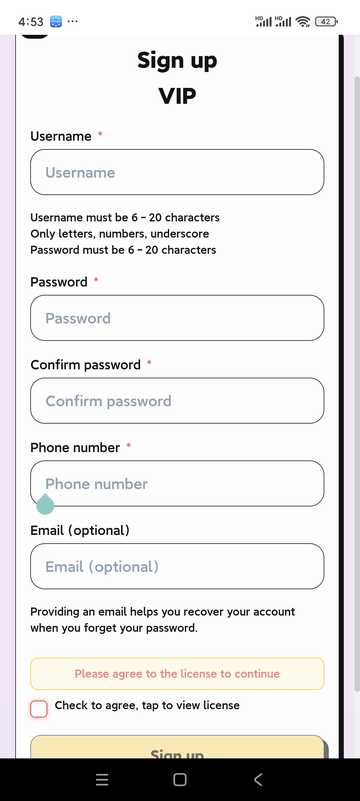
- Open the app and click "Register"
- Fill in username, password, and other information
- Read and agree to the User Agreement and Privacy Policy
- Click Sign up to finish creating your account
- Users in mainland China must ensure that their phone number is correct in order to retrieve their password; users in other countries can leave their phone number blank, but they must ensure that their email address is correct! This email address will then be used to retrieve the password.
2.2 User Login
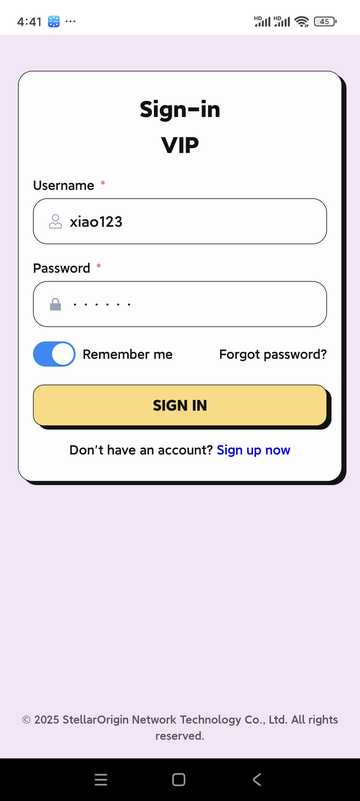
- Enter username and password
- Option "Remember password" for next login
- Click "Log in" to enter the app
III. Home Page and Equipment Management
3.1 Início
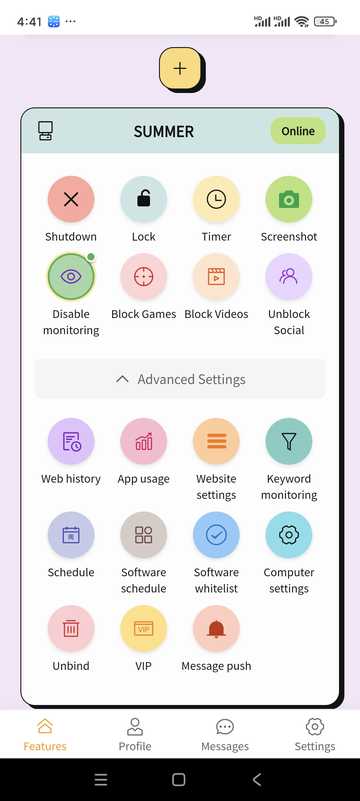
- Manage or add bound devices
- View device online status
- Quickly access common capabilities (shutdown, lock, screenshot, schedule, etc.) via the Function Panel
3.2 Adding Devices
- From the homepage, click “Add device” or “+”
- The system generates a 6-digit binding code (example: 5R5W2V)
- On your child's computer, install and open the desktop and click "Bind phone"
- Enter the above binding code on the computer side
- Wait for the link to succeed to manage the PC on your phone
3.3 Computer settings (some options)
Network/browser restrictions, OCR, behavior monitoring, and post-trigger disposition can be configured for bound computers (consistent with PC-side policies).
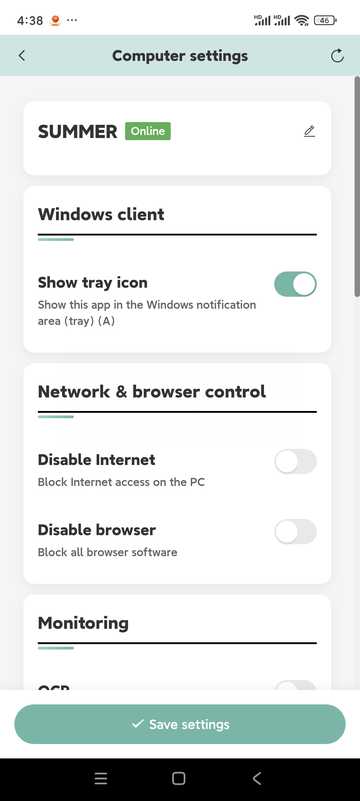
- No Internet/No Browser
- OCR recognition (in conjunction with keyword control; about every 5 seconds)
- Behavioral monitoring (integrated keyboard and mouse, graphics card, etc. to judge game behavior)
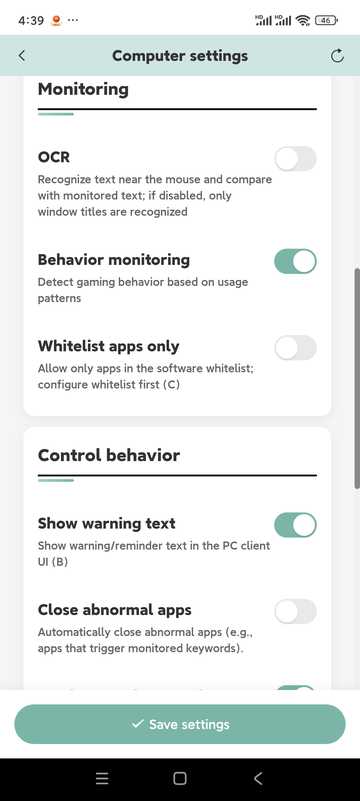
- Close abnormal apps, send screenshots to phone
- Disable the computer, shut down the computer
- Eye protection mode (timeout lock mandatory rest)
- "Points mode" is reserved, the current version is not enabled
IV. Timing · Remote Locking · Screenshots
计时使用
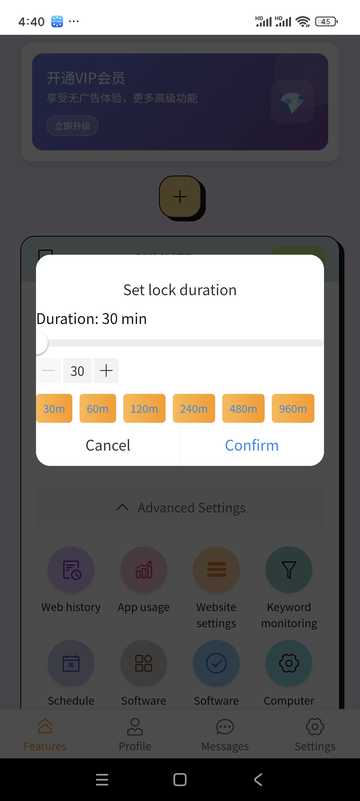
- Select device
- Set allowable usage duration
- When turned on, it will be locked or handled by policy
远程锁定
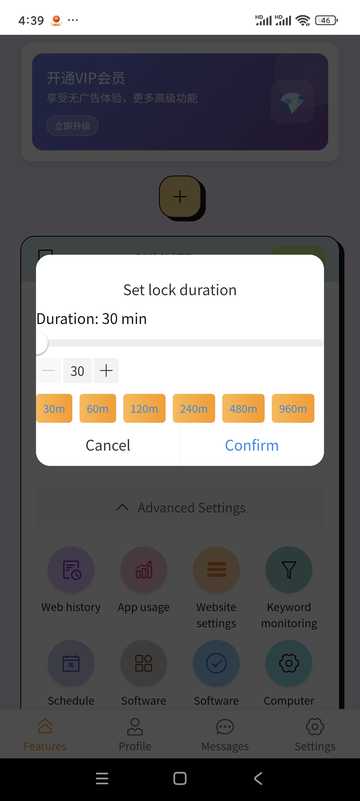
- Lockable on time
- Unlock remotely in the app when needed
Computer screenshots
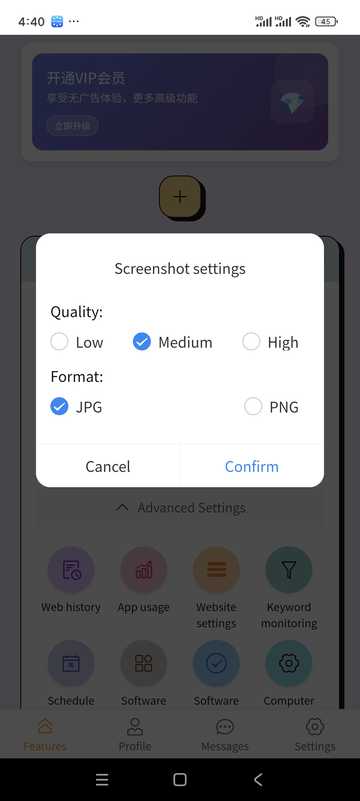
- Tap "Screenshot"
- View current screen
- Can be saved to your phone
V. Schedule · Application Record · Keywords · Website
computer schedule
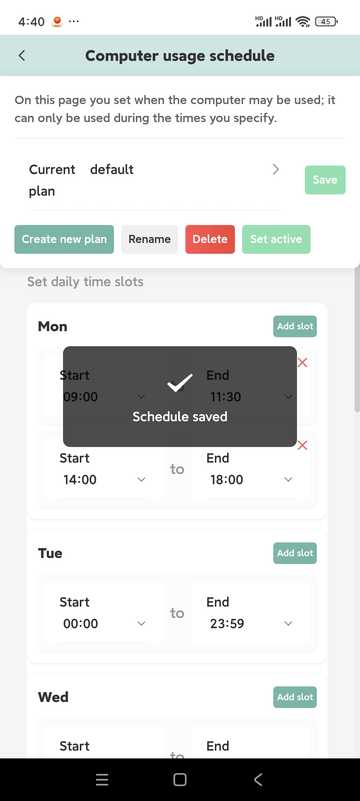
- Set daily available hours beyond which it can be automatically locked
- Multiple time slots can be configured on the same day
- Separable by week
- Multiple plans can be built and one of them can be activated as needed
Apps记录
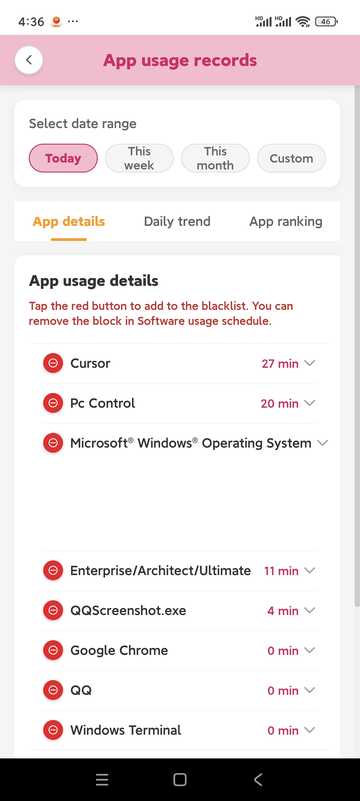
- See how long and how often the app is used
- Can be combined with record retightening strategy
关键字监控
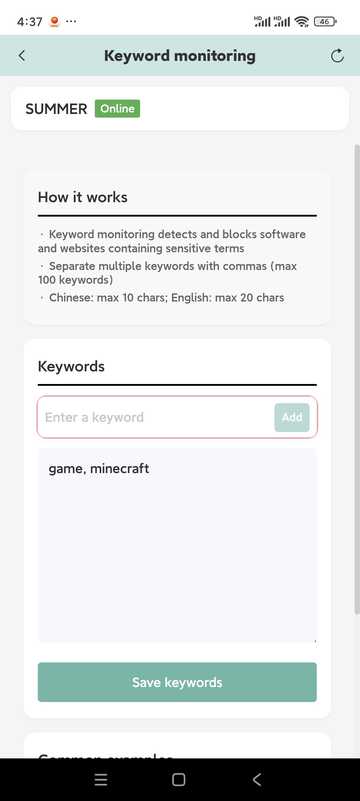
- Add keywords to monitor
- The maximum length is about 10 words in Chinese and about 20 characters in English (subject to the prompts in the software)
- Keywords need to appear in窗口标题It is easy to trigger in the middle; to recognize the screen text, please cooperate with the OCR in the computer settings
- Identify locally and reduce the risk of privacy breaches
Website settings
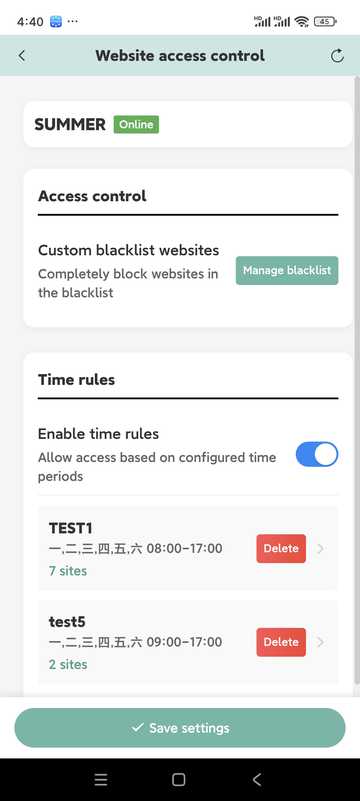
- Maintain blacklists and access times
- Can include similar sites in the same time rule
- If the control is abnormal, check whether the PC is blocked by the security software and release it.
VI. VIP Information
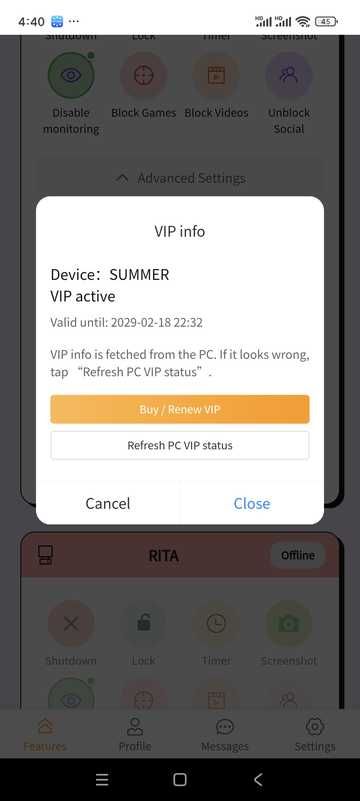
- See your current tiers and when they expire
- Select the appropriate amount of time on the package page and complete the payment (based on the in-software payment method)
The price description can also be found in the "Price description" section on the homepage of this site.
VII. Personal Center · Messages · Settings
personal information
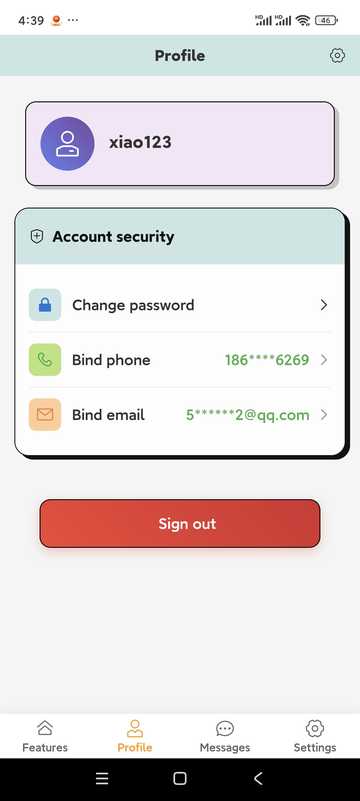
Check the status of your account; tap the option to change your password, update your contact details, or log out of your account (logging out will remove bindings and records, be careful).
Change Profile
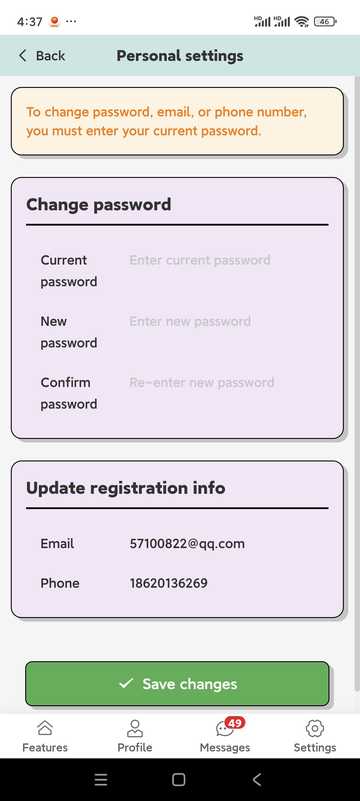
- Passwords are generally more than 6 letters + numbers (subject to app prompts)
- Users in mainland China must ensure that their phone number is correct in order to retrieve the password; users in other countries and regions must ensure that their email address is correct
Message center
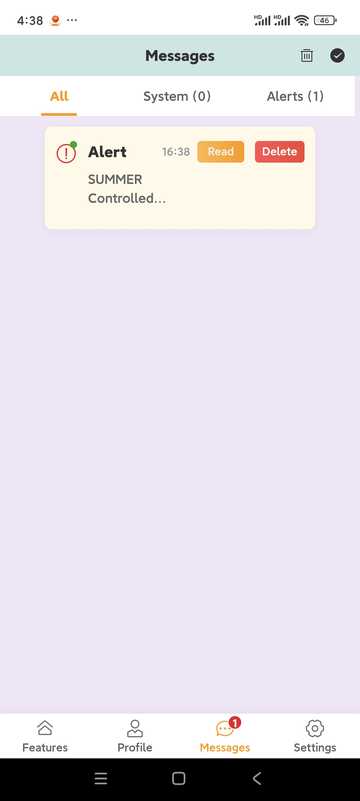
- Receive desktop control event reminders (if screenshot push is turned on, etc.)
- System Announcements and Notices
Other Settings
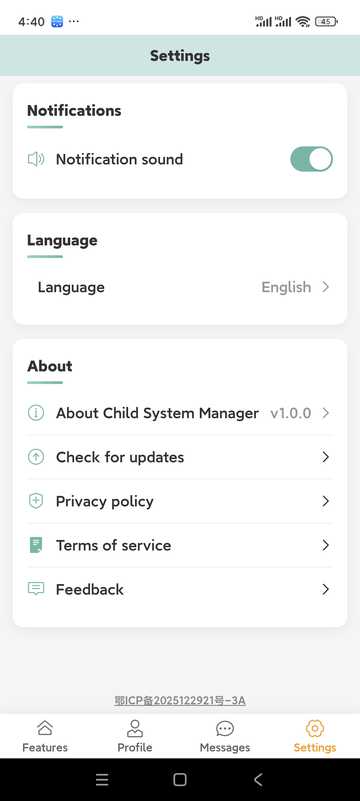
- Whether to play a tone when the alarm arrives
- Multilingual switching
- Update
- Feedback portal
VIII. Tips · Precautions · app Frequently Asked Questions
Tips
- Regularly review usage statistics and adjust rules with your child
- Time Limit Suggestions Step-by-Step and Communicate in Advance
- Develop a habit of viewing the message center and handling exceptions in a timely manner
- Please use in compliance with the law and with the knowledge of the ward
- Keep your account and password properly
- Keep app and desktop as newer versions
APP FAQ
- How do I add a device?
- On the home page, "Add device", press the binding code to complete the pairing on the computer side; the computer needs to have the desktop side installed.
- Device is offline
- Check whether the computer network, power supply and PC side are running; if you are killed by soft interception, release it in kill soft.
- Lost Password?
- Use "Forgot Password" on the login page to reset by phone number or email flow.
- Membership vs. Trial?
- Trial and membership rules will be marked in the software; some remote setting capabilities may be limited after expiration, please follow the in-app prompts.
Solução de problemas
Perguntas frequentes e soluções
Possíveis causas:
- Operating system damage
- Anti-virus software is damaged. This software has been tested by 10 major anti-virus software in the world, but all anti-virus software or subsequent versions are not guaranteed to be compatible.
- System compatibility issues This software supports Windows 10 64-bit operating systems, but does not guarantee that all Windows 10 64-bit operating systems will be compatible.
Solução:
- Add a whitelist to your antivirus, or update your antivirus to the latest version
- Check the system version compatibility, if the system version is not supported, please upgrade the operating system to the latest version
- Don't hesitate to contact us for help!
Possíveis causas:
- Problemas de conexão de rede
- Informações da conta incorretas
- O app de PC não está funcionando corretamente
Solução:
- Verificar a conexão de rede
- Confirme que as informações da conta estão corretas
- Reiniciar o app de PC
Possíveis causas:
- Mudança de nome do programa do jogo
- Novo jogo não está no banco de dados
- Configurações muito rigorosas
Solução:
- Adicionar programas de jogos manualmente
- Atualizar o software
- Ajustar configurações de detecção
FAQ
FAQ
- Ver este guia
- Acessar a central de ajuda
- Send mails to service@stellarorigin.com
- Adicionar WeChat: stellarorigin
- QQ:57100822