Kid's End: Installation and Uninstallation
This section corresponds to the Windows computers used by children on a daily basis client (unlike apps that parents have installed on their phones). Install the package from the Official website download page.
This software fully takes into account the laws and regulations of various countries on the protection of minors, as well as the concerns of parents about the use of computers by children and adolescents, so a variety of functions have been designed to protect the privacy and safety of minors. Comply with the privacy provisions of each country, and do not collect, store, or use the privacy information of any minor.
Operating environment (extracted from instructions)
| Item | Minimum Configuration | Recommended Values |
|---|---|---|
| Operating System | Windows 10 (64-bit only) | Windows 10 (64-bit only) |
| Processor | Dual-core 2.0 GHz | Quad-core 2.5 GHz and above |
| Memory | 4 GB | 8 GB or more |
| Hard drive space | 200 MB available | More than 1 GB (for easy screenshot storage) |
| Network | Internet required | Stable broadband |
Installation steps
- Obtain the .zip installation package from the official website or installation media. Extract the exe to execute the security package and double-click Run.
- Double-click to run; the installer supports multiple languages, and the interface language is automatically selected according to the Windows system language.
- After the installation is completed, the software will start automatically, and the main interface or tray icon will appear.
- Setup required for first startup: At least 6 digits management password and fill in the phone and email (please be sure they are correct). Mainland China is generally retrieved by text message, and other regions are retrieved by email verification code.
- You will be prompted whether to bind the phone management terminal; you can bind or not. If you have downloaded the parent management app, click the "+" in the mobile app to get the binding code, and enter it on the computer to complete the binding. If you haven't installed the parent app yet, you can also set up local rules on this computer first. Once the parent app is installed and connected to the account, you can remotely adjust settings from your own device.
- Please follow the prompts to complete the Graphics Card Test on the first run of version 1.0 (See "Graphics Card Detection and Live Streaming Monitoring" below), so that multi-dimensional monitoring and live scene recognition are more accurate. Since version 1.1, for ease of operation, the graphics card detection function has been integrated into the software, no separate operation is required.
Uninstallation method
- You can also uninstall via Windows Settings → Apps.
- Please click on the bottom left side of the software interface "Software Uninstallation", and follow the wizard to complete the uninstallation.
Parent Mobile (brief)
Parents are invited to install the management app on their own mobile phone (different from the program on your child's computer). Scan the code or download from the app store to register and log in; see the "Parent App Instructions" below for more details.
Device Binding and System Settings
Device Binding and Management
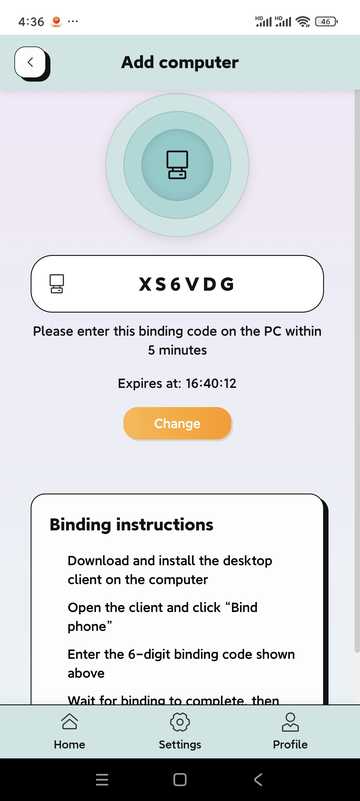
Parent Mobile App generates a 6-digit dynamic binding code. Establish a trust relationship after entering it on the child's computer. Once connected, parents can view online status remotely, receive notifications, and take control. Bind up to two mobile phones per PC; the first account linked is the primary account, and any added later are secondary accounts.
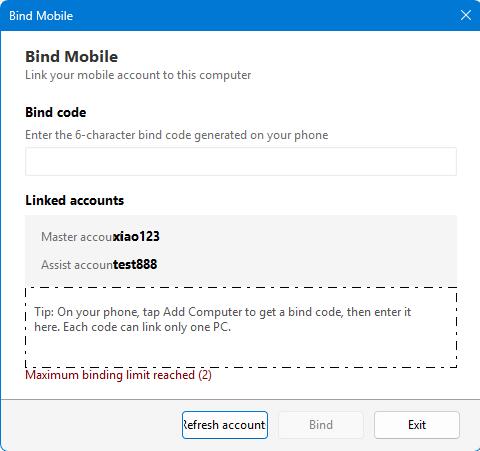
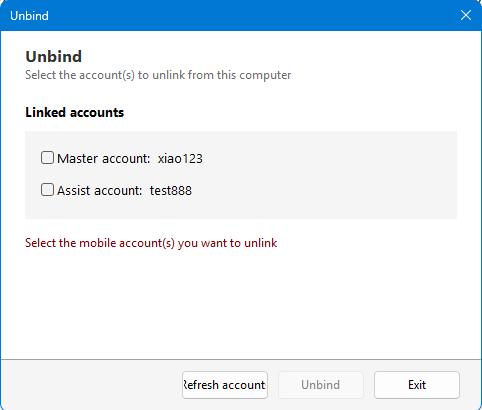
Steps
- Click "Add Computer" in the parent's mobile app to get the binding code.
- Click "Bind phone" on the main screen of the child's computer.
- Enter the binding code and click Bind.
- When you need to unbind, enter the "Unbind" screen, enter the password and click "Unbind".
- The binding code is time-limited, please complete the operation within the validity period.
- After unbinding, the computer is no longer controlled remotely by the mobile phone, but locally saved policies will remain.
System Settings
Configure global monitoring policies in this section: keywords, OCR, multi-dimensional monitoring, actions performed in case of abnormalities, network/browser restrictions, timed screenshots, tray display, etc.
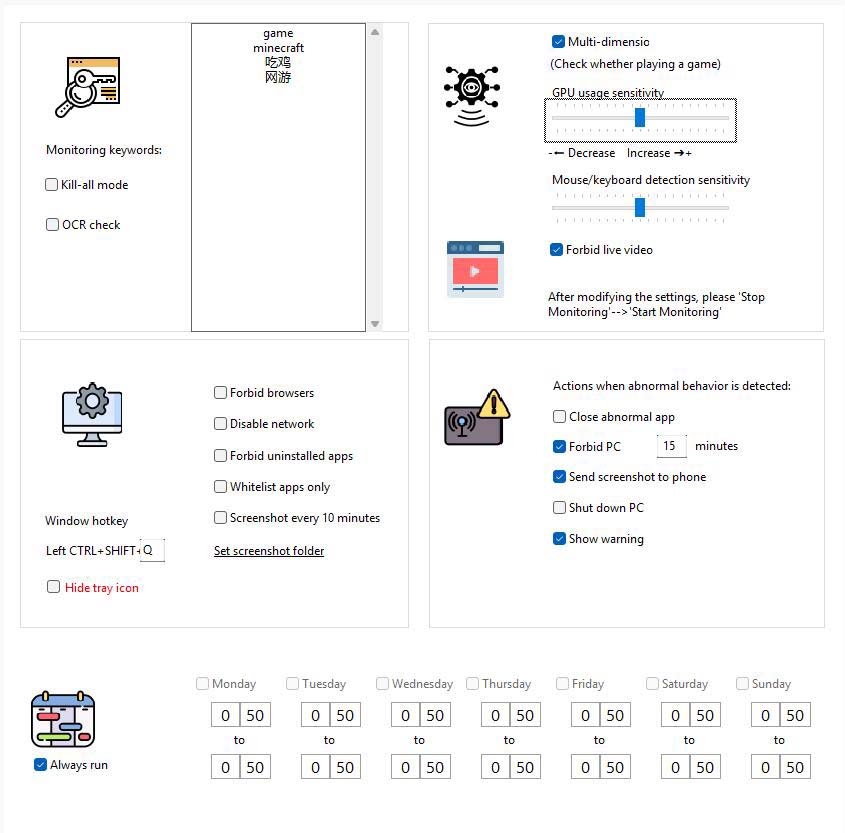
Key points of the interface (extracted from the instructions)
- Monitoring keywords: Window title or screen text to be monitored (e.g. “Game”, game English name, etc.).
- Kill Mode: Keyword detection for all windows (not exempt from whitelisting).
- OCR Testing: Regularly identify the screen area text near the mouse and compare it to keywords.
- Multidimensional monitoring: Combines GPU usage and user activity to detect gaming behavior; add common study and office apps to the whitelist to reduce false positives.
- Keyboard and mouse sensitivity: Modulate behavioral analysis sensitivity.
- AI detection for live-stream viewing: Block live gaming apps. Note: This feature is complex to implement with low system occupancy and there is currently a possibility of miscalculation. In our tests, more than 95% of livestreams are recognized as normal, but a very small part of normal operation may be recognized as a livestream. So please turn it on or off as needed.
- Action when an abnormality is found: Such as closing abnormal applications, disabling computers, sending screenshots to mobile phones, shutting down, etc.; you can check whether to display a warning. If you do not display a warning, when abnormal behavior is captured, control actions will be performed directly. If an alert is displayed, the user is prompted and the control action is performed after the countdown ends.
- Whitelist software only: When turned on, only programs in the whitelist are allowed to run.
- Do not display tray icon / Disable network / Disable browser / Scheduled screenshots: Check the box according to the actual needs of the family; the screenshot directory can be specified in the settings.
Steps
- Go to System Settings.
- Fill in keywords as needed, check monitoring items, set sensitivity and abnormal actions.
- Click “Save Settings” to take effect; click “Stop Monitoring” to stop temporarily.
Management suggestions
Create a standard Windows user for your child
If your child already has a high level of computer talent and is approaching the entry level of a professional, they may try various ways to bypass your controls. You can create a standard Windows user for them, and you use the Windows admin account yourself. This gives you more control over your child's computer usage.
Schedule, Websites, Lists & Logs
List Management (Whitelist)
Software in the whitelist will not be recognized as game software; it is suitable for adding common learning and office programs.
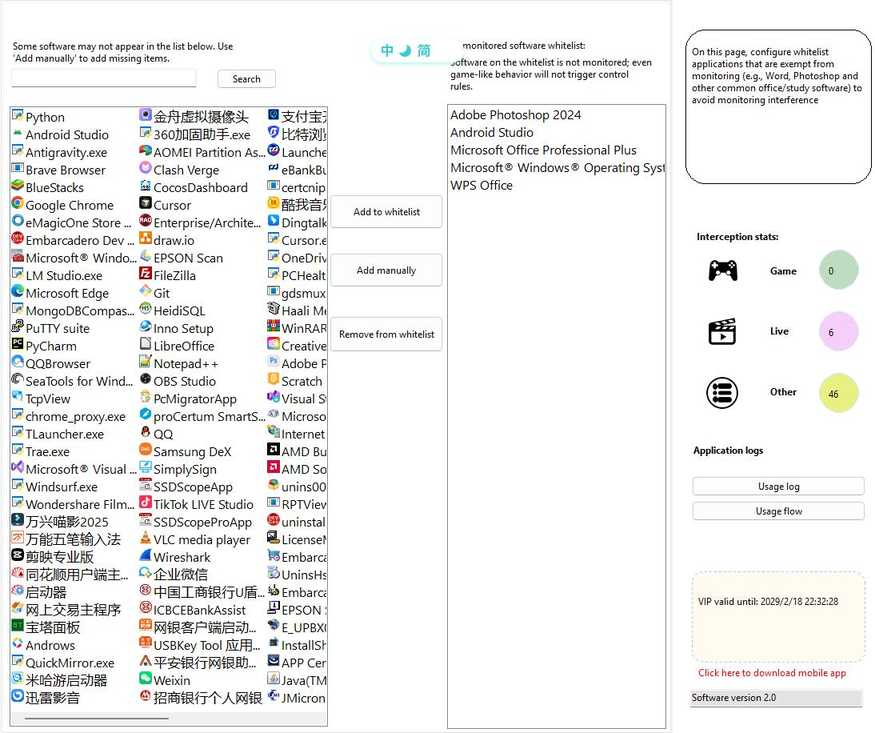
- Go to List Management.
- Lookup: The search box filters the existing whitelist.
- Add: Select from the candidate list, or enter the software name manually, or select .exe from "Add Your Own".
- Delete: Delete or double-click delete after selecting an entry in the list on the left.
- Your changes will take effect when you save or switch pages.
Computer Usage Schedule
Set the entire computer's available hours; during unavailable hours, the interface can be locked and further use prevented.
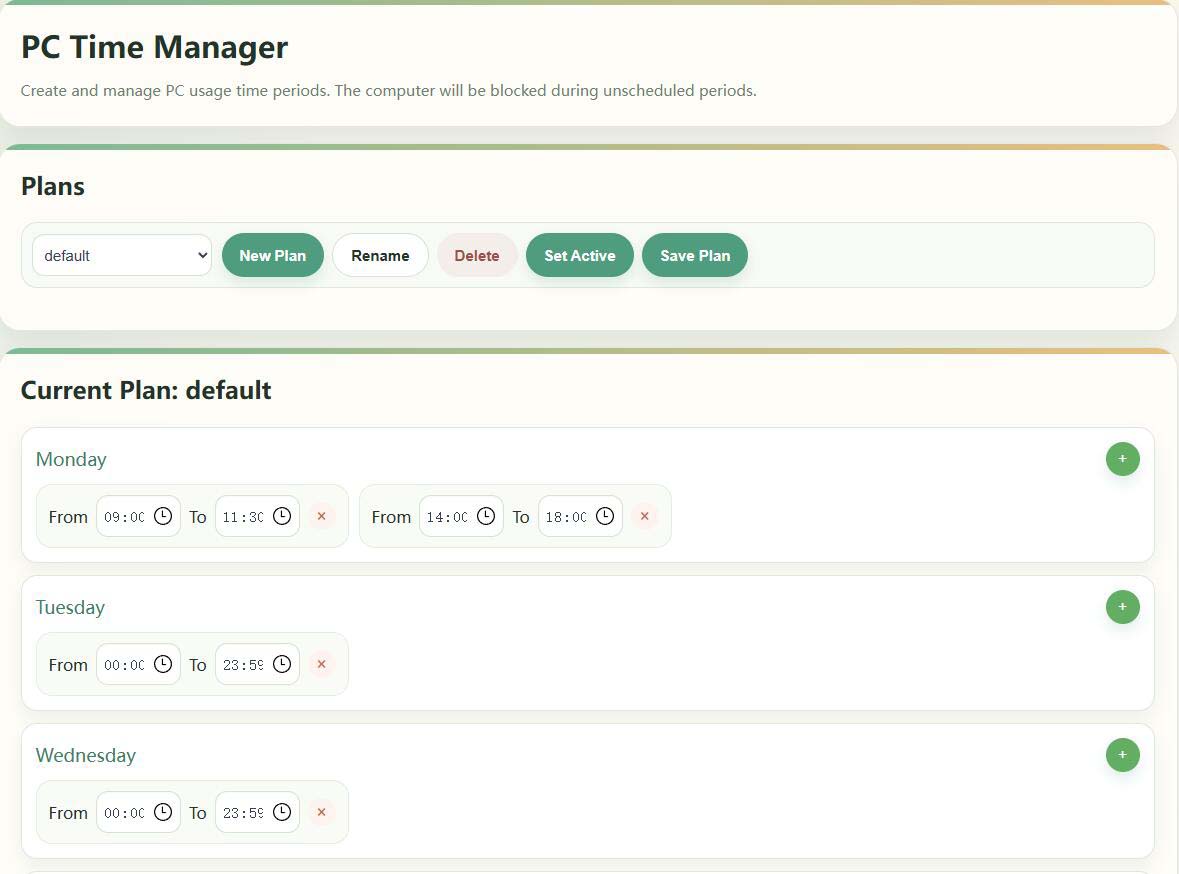
- Go to Computer Usage Schedule.
- Create/Rename/Delete a schedule in the scheduler and set it as Active (showing "Active").
- Set multiple hours of availability by day of the week on the right, effective after saving.
For temporary release, you can use "Stop Monitoring" on the computer or mobile phone; if the screen is not locked by the scheduled time, please check the current activation plan and system time (see the FAQ in the manual).
Software Usage Schedule
For specific software, set a separate window during which it can run (for example, allow game clients only on weekend afternoons).
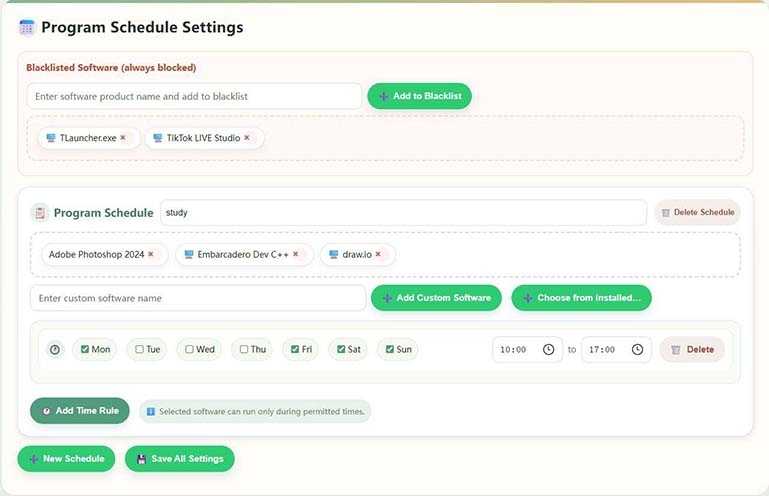
- Go to the Software Usage Schedule.
- Check the programs you want to control in Installed Software (you can select more than one).
- Adding weeks and start and end times to the program calendar settings allows you to set multiple rules for the same software.
- If the list does not have a target program, you can either "Enter a custom software name" or add it using the .exe / product name description.
- Click “Save Settings” when you're done. Whitelisted software is exempt from this restriction.
Domain Management (Website Access Control)
Manage accessible websites: Built-in categorized libraries for games/videos, support full ban or limited access according to time rules.
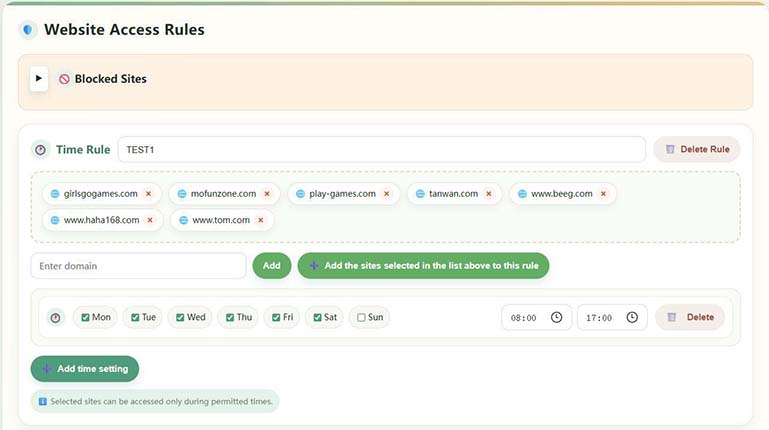
- Go to Domain Management.
- Browse the built-in categories and custom websites on the left, and filter using keywords.
- When there is no preset domain name, use "Add a custom website".
- Save after configuring Full Ban or Time Rule; sites within the rule can only be opened during licensed hours.
Built-in common gaming sites for quick configuration; fill in the full domain name when customizing.
Graphics card detection and live monitoring
Used to establish a GPU usage baseline and improve recognition accuracy of games/live broadcasts with high loads; After installing or replacing the graphics card for the first time, it is recommended to run this once.

- Go to Graphics Testing.
- Fill in the "Enter the name of the live site" field with commonly used live streaming sites.
- By clicking "Start Setup", the system will calibrate the GPU; do not run other high-occupancy graphics programs during the process.
- Approximately 2-3 minutes to complete and prompt for success.
Application logging and screenshot viewing
View the length of use of each software, the number of starts, the timeline flow chart, and (if turned on) automatic screenshots for ease of post-hoc review.
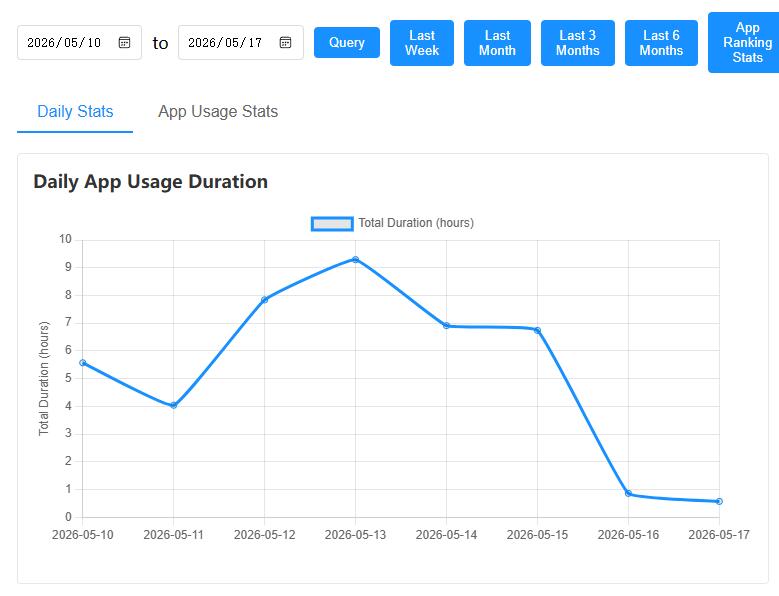
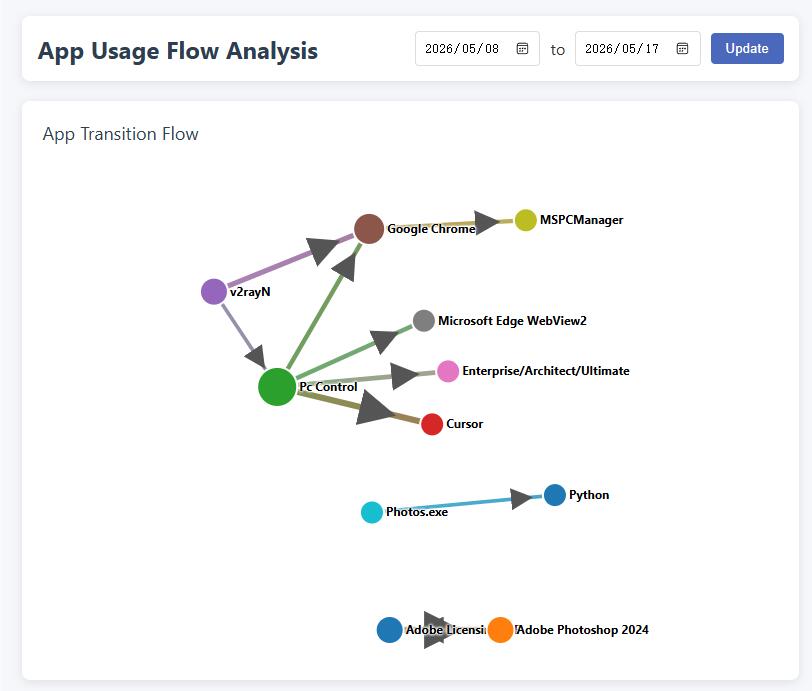
- Software Usage Record: View statistics in Application → History Software Usage History.
- Usage Flowcharts: View app toggles and associations by timeline.
- Browse screenshots: Automatic screenshots need to be turned on in system settings; the directory is customizable and it is recommended to clean it regularly to save disk space.
Account Security & Membership (Desktop)
- Change password: Go to "Change Password"; forgetting it will affect sensitive operations such as unbinding.
- Membership info: The VIP expiration date can be viewed in the "Registration Information" area of the main screen, and some advanced capabilities may be limited after expiry.
- Download on your phone: Click "Click here to download the mobile app" to get the parent app.
- Unbind: See “Device Binding” above.
Parent App Instructions
The app described below is installed on the parents' own mobile phone and is used in conjunction with the child's computer; complex rules can also be configured in the local management interface of the computer.
The instruction text refers to the "Instructions for Use of the Little Lamb Anti-Addiction App" in the copyright document; the interface is subject to the actual version.
A. Software Overview
This app helps parents remotely understand and manage their children's computer usage from their mobile phones: view screenshots, set time periods, control websites and keywords, receive alerts, etc. The PC side needs to be installed on the computer used by the child and be able to connect to the Internet.
Privacy Notice: The data of the PC and this app are mainly stored on your own device, and the system does not transfer your personal private content to the operator's servers. The peer-to-peer communication idea between the phone and computer is more secure.
Key Features
- Device Binding and Management: Adding and Managing Bound Computers
- Real-time viewing: See computer screenshots of usage
- Time control: usage duration, schedule and time management
- Content Control: Website and App Rules, Keywords and Behavioral Monitoring Linkage
- Message Center: Receive control events and system messages
- Statistical report: Usage duration and application usage overview, and timely intervention for control
- Temporary control: shutdown, timing, remote locking, screenshots, etc.
II. Quick Start
2.1 User Registration
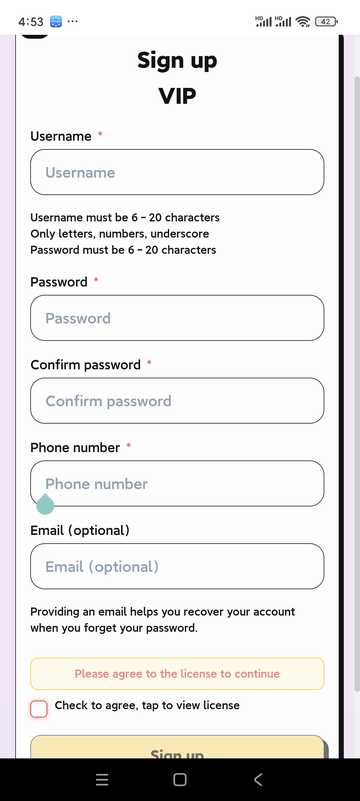
- Open the app and click "Register"
- Fill in username, password, and other information
- Read and agree to the User Agreement and Privacy Policy
- Click Sign up to finish creating your account
- Users in mainland China must ensure their phone number is correct in order to retrieve their password; users in other countries can leave their phone number blank, but must ensure their email address is correct! This email address will then be used to retrieve the password.
2.2 User Login
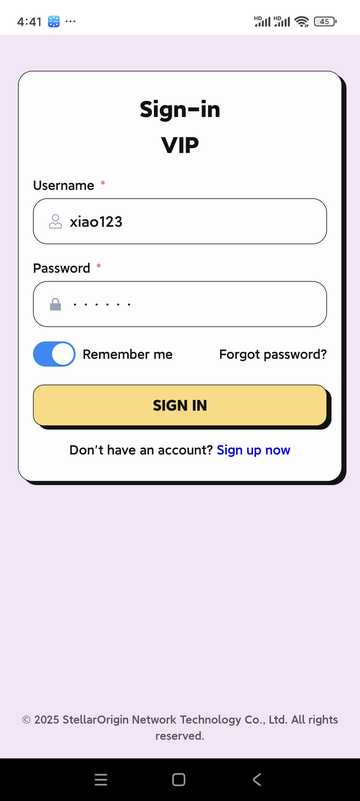
- Enter username and password
- Option "Remember password" for next login
- Click "Log in" to enter the app
III. Home Page and Device Management
3.1 Home
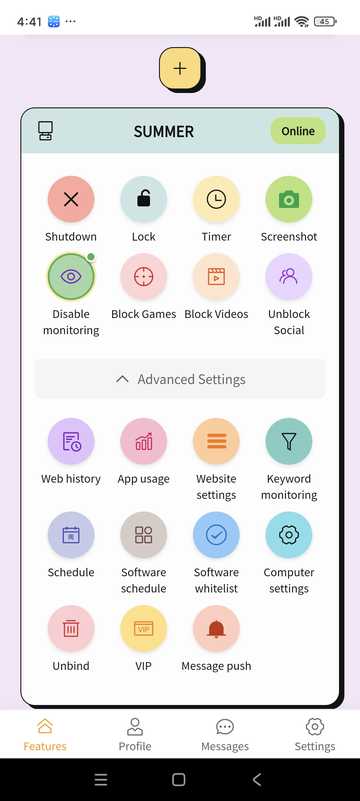
- Manage or add bound devices
- View device online status
- Quickly access common capabilities (shutdown, lock, screenshot, schedule, etc.) via the Function Panel
3.2 Adding Devices
- From the homepage, click “Add device” or “+”
- The system generates a 6-digit binding code (example: 5R5W2V)
- On your child's computer, install and open the desktop app and click "Bind phone"
- Enter the binding code on the computer side
- Wait for the link to succeed to manage the PC from your phone
3.3 Computer settings (some options)
Network/browser restrictions, OCR, behavior monitoring, and post-trigger disposition can be configured for bound computers (consistent with PC-side policies).
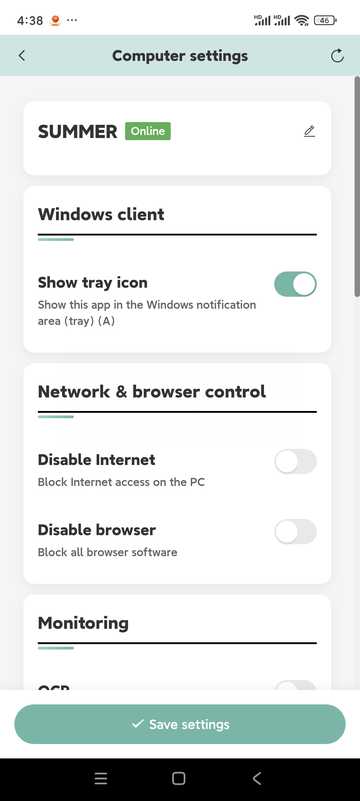
- No Internet/No Browser
- OCR recognition (in conjunction with keyword control; about every 5 seconds)
- Behavioral monitoring (integrates keyboard, mouse, graphics card, etc. to judge game behavior)
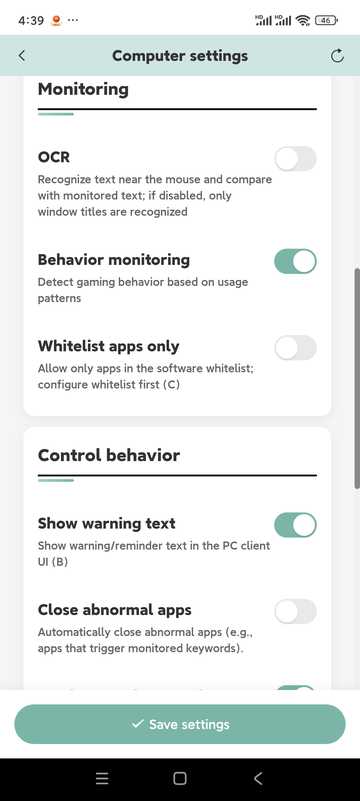
- Close abnormal apps, send screenshots to phone
- Disable the computer, shut down the computer
- Eye protection mode (timeout lock forces rest)
- "Points mode" is reserved, the current version is not enabled
IV. Timing · Remote Locking · Screenshots
Timed Use
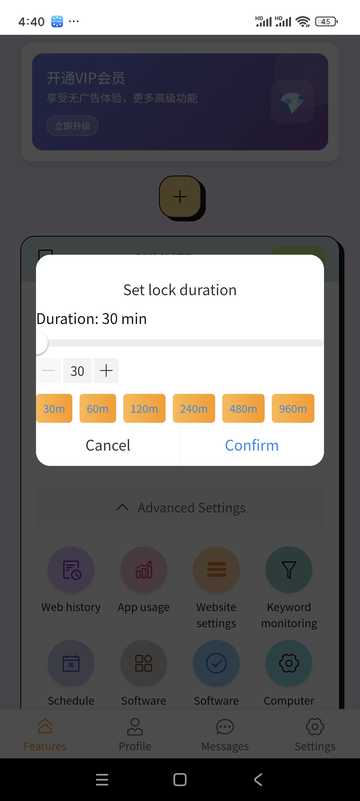
- Select device
- Set allowable usage duration
- When turned on, it will be locked or handled by policy
Remote Lock
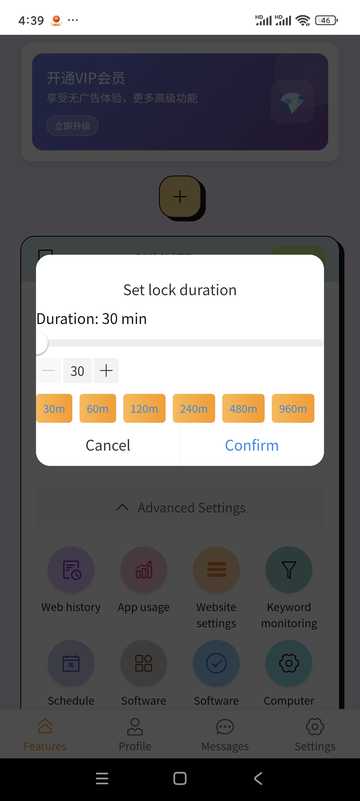
- Lockable on time
- Unlock remotely in the app when needed
Computer screenshots
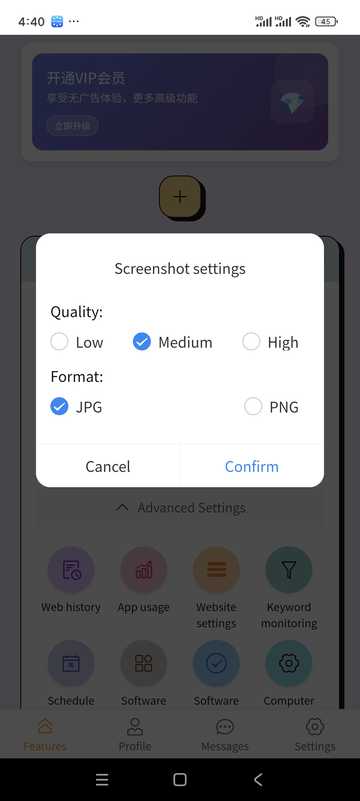
- Tap "Screenshot"
- View current screen
- Can be saved to your phone
V. Schedule · Application Record · Keywords · Website
Computer Schedule
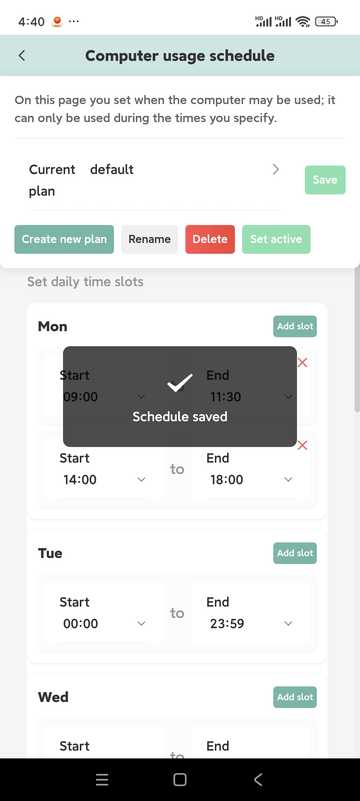
- Set daily available hours, beyond which it can be automatically locked
- Multiple time slots can be configured on the same day
- Separable by day of week
- Multiple plans can be built and one of them activated as needed
App Logs
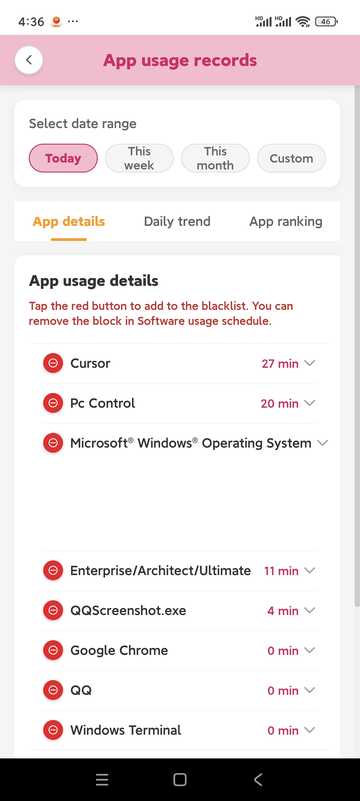
- See how long and how often the app is used
- Can be combined with record tightening strategy
Keyword monitoring
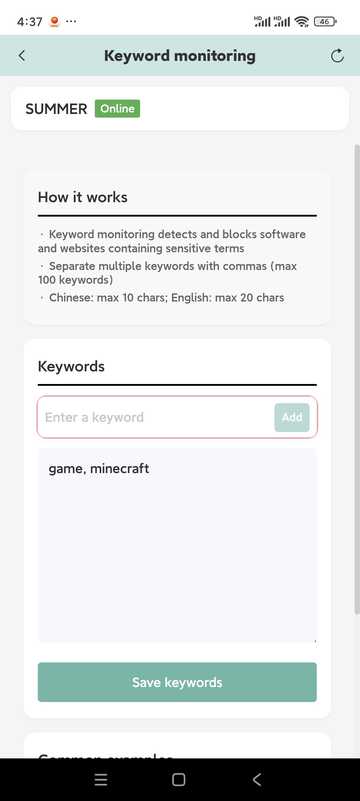
- Add keywords to monitor
- The maximum length is about 10 words in Chinese and about 20 characters in English (subject to the prompts in the software)
- Keywords need to appear in the window title to trigger easily; to recognize screen text, please enable OCR in the computer settings
- Identify locally and reduce the risk of privacy breaches
Website Settings
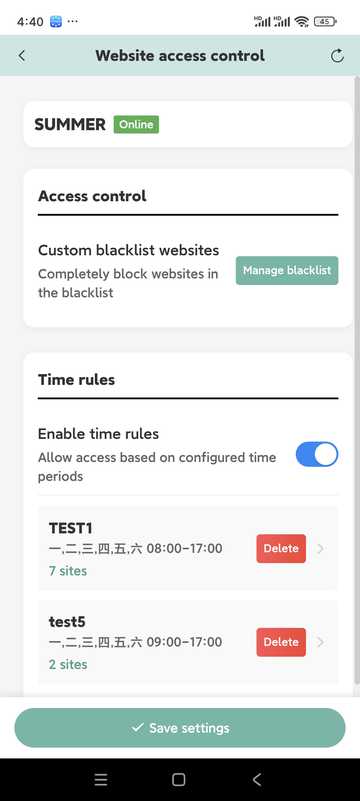
- Maintain blacklists and access times
- Can include similar sites in the same time rule
- If control is abnormal, check whether the PC is blocked by security software and unblock it
VI. VIP Information
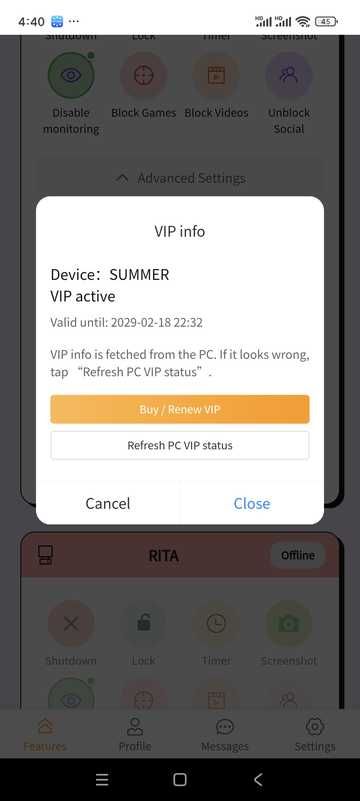
- See your current tier and expiration date
- Select the appropriate amount of time on the package page and complete the payment (based on the in-software payment method)
The price description can also be found in the "Pricing" section on the homepage of this site.
VII. Personal Center · Messages · Settings
Personal Information
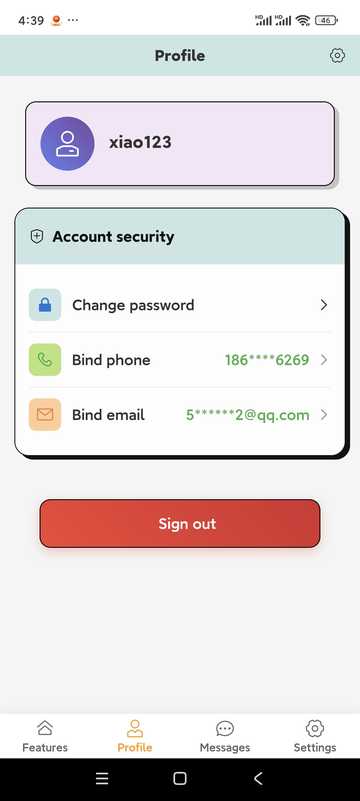
Check the status of your account; tap the option to change your password, update your contact details, or log out of your account (logging out will remove bindings and records, be careful).
Change Profile
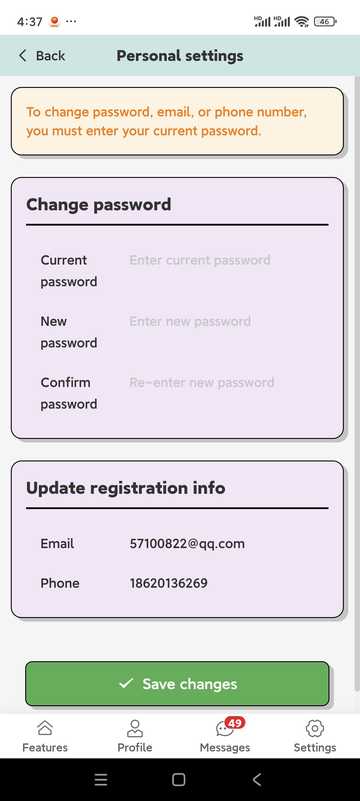
- Passwords are generally more than 6 letters + numbers (subject to app prompts)
- Users in mainland China must ensure their phone number is correct to retrieve the password; users in other countries and regions must ensure their email address is correct
Message Center
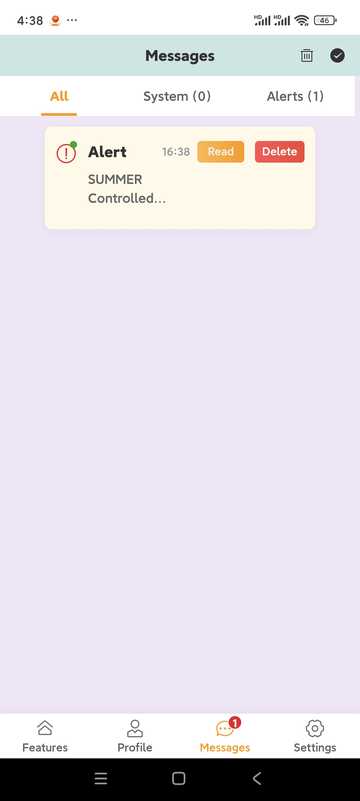
- Receive desktop control event reminders (if screenshot push is turned on, etc.)
- System Announcements and Notices
Other Settings
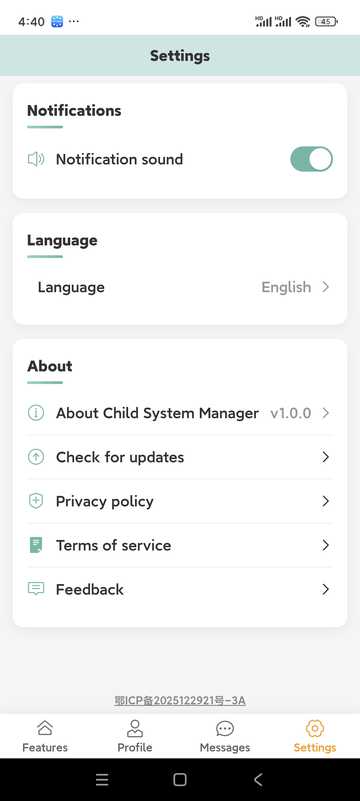
- Whether to play a tone when an alert arrives
- Multilingual switching
- Update
- Feedback portal
VIII. Tips · Precautions · App FAQ
Tips
- Regularly review usage statistics and adjust rules with your child
- Suggest time limits step by step and communicate in advance
- Develop a habit of checking the message center and handling exceptions promptly
- Please use in compliance with the law and with the knowledge of the child
- Keep your account and password secure
- Keep app and desktop versions up to date
App FAQ
- How do I add a device?
- On the home page, click "Add device", use the binding code to complete pairing on the computer; the computer must have the desktop side installed.
- Device is offline
- Check whether the computer's network, power, and PC side are running; if blocked by security software, unblock it.
- Forgot password?
- Use "Forgot Password" on the login page to reset via phone number or email flow.
- Membership vs. Trial?
- Trial and membership rules will be indicated in the software; some remote setting capabilities may be limited after expiration, please follow in-app prompts.
Troubleshooting
Common questions and solutions
Possible causes:
- Operating system damage
- Anti-virus software is interfering. This software has been tested by 10 major antivirus programs worldwide, but compatibility with all antivirus software or subsequent versions is not guaranteed.
- System compatibility issues. This software supports Windows 10 64-bit operating systems, but does not guarantee compatibility with all Windows 10 64-bit operating systems.
Solution:
- Add the software to your antivirus whitelist, or update your antivirus to the latest version
- Check system version compatibility; if not supported, upgrade the operating system to the latest version
- Don't hesitate to contact us for help!
Possible causes:
- Network connection issues
- Account information is incorrect
- PC app is not running properly
Solution:
- Check the network connection
- Confirm the account information is correct
- Restart the PC app
Possible causes:
- Game program name changed
- New game is not in the database
- Settings are too strict
Solution:
- Manually add the game program
- Update the software
- Adjust detection settings
FAQ
FAQ
- View this guide
- Open the Help Center
- Send an email to service@stellarorigin.com
- Add WeChat: stellarorigin
- QQ: 57100822