孩子端:安裝與卸載
本節對應安裝在孩子日常使用的 Windows 電腦上的客戶端(與家長在手機上安裝的 APP 不同)。安裝包請從 官網下載頁 獲取。
本軟件充分考慮了各國關於保護未成年人的法律法規,以及家長對兒童、青少年使用電腦的擔憂,因此設計了多種功能來保護未成年人的隱私和安全。遵守各國隱私條款,不收集、不存儲、不使用任何未成年人的隱私信息。
運行環境(摘自說明書)
| 項目 | 最低配置 | 推薦配置 |
|---|---|---|
| 操作系統 | Windows 10 64 位 | Windows 10 64 位 |
| 處理器 | 雙核 2.0 GHz | 四核 2.5 GHz 及以上 |
| 內存 | 4 GB | 8 GB 或更高 |
| 硬盤空間 | 200 MB 可用 | 1 GB 以上(便於截屏存儲) |
| 網絡 | 需聯網 | 穩定寬帶 |
安裝步驟
- 從官網或安裝介質獲取 .zip 安裝包。提取exe可執行安全包,然後雙擊運行。
- 雙擊運行;安裝程序支持多語言,會按 Windows 系統語言自動選擇界面語言。
- 安裝完成後軟件會自動啓動,出現主界面或托盤圖標。
- 首次啓動需設置至少 6 位的管理密碼,並填寫用於找回密碼的手機號與郵箱(請務必正確)。中國大陸一般以短信找回,其它地區以郵箱驗證碼找回。
- 系統會提示您是否綁定手機管理端,您可以綁定也可以不綁定。如果您已下載手機管理端,則在手機端點擊“+”號,獲取綁定碼,在電腦端輸入即可完成綁定。如果暫時還沒裝家長端,也可以先在這臺電腦上把本機規則設好;等家長端裝好並與賬號關聯後,就能在您自己的設備上遠程調整啦。
- 1.0版本首次運行請按提示完成顯卡檢測(詳見下文「顯卡檢測與直播監控」),以便多維監控與直播類場景識別更準確。1.1版本開始,爲了操作簡單,顯卡檢測功能已集成到軟件中,無需單獨操作。
卸載方法
- 也可通過 Windows「設置 → 應用」完成卸載。
- 請在軟件界面底部左側點擊「軟件卸載」,按嚮導完成卸載。
家長手機端(簡要)
家長請在自己的手機上安裝管理端 APP(與孩子電腦上的程序不同)。掃碼或應用商店下載後註冊、登錄即可;詳細圖文見本頁下方「家長 APP 使用說明」。
設備綁定與系統設置
設備綁定與管理
由家長手機 APP 生成 6 位動態綁定碼,在孩子電腦端輸入後建立信任關係。綁定後,家長可遠程查看在線狀態、接收通知並執行管控。一臺電腦最多綁定兩部手機;首次綁定的賬號爲主賬號,其後添加爲輔助賬號。
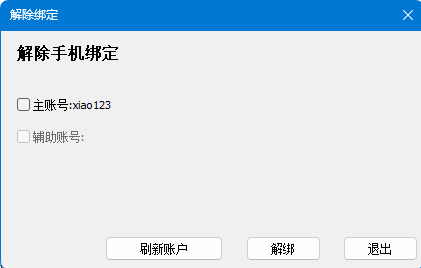
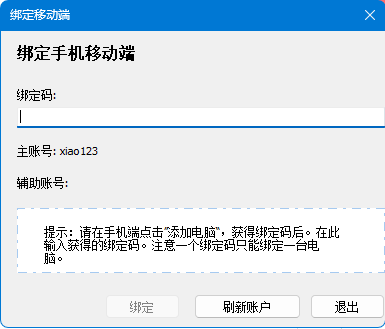
操作步驟
- 在家長手機 APP 中點擊「添加電腦」,獲取綁定碼。
- 在孩子電腦端主界面點擊「手機綁定」。
- 輸入綁定碼,點擊「綁定」。
- 需解綁時,進入「解除綁定」界面,輸入密碼後點擊「解綁」。
- 綁定碼有時效,請在有效期內完成操作。
- 解綁後電腦不再受手機端遠程控制,但本機已保存的策略仍會保留。
系統設置
在此集中配置全局監控策略:關鍵字、OCR、多維監控、異常時執行的動作、網絡/瀏覽器限制、定時截屏、托盤顯示等。
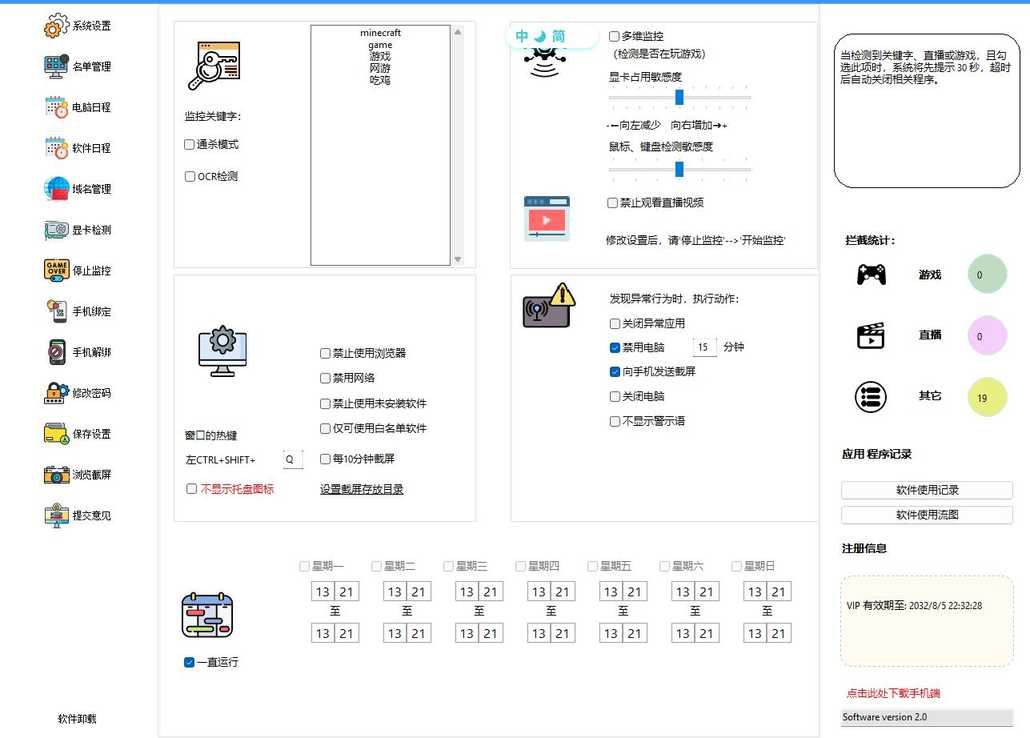
界面要點(摘自說明書)
- 監控關鍵字:需監控的窗口標題或屏幕文字(如「遊戲」、遊戲英文名等)。
- 通殺模式:對所有窗口做關鍵字檢測(不受白名單豁免)。
- OCR 檢測:定期識別鼠標附近屏幕區域文字,並與關鍵字比對。
- 多維監控:結合顯卡使用及用戶操作行爲等綜合判斷遊戲行爲;建議常用學習/辦公軟件加入白名單以免誤判。
- 鍵鼠敏感度:調節行爲分析靈敏度。
- AI檢測是否觀看直播視頻:攔截遊戲直播類應用。注意:此功能在低系統佔用率的情況下實現過於複雜,當前存在誤判可能。在我們的測試中,95%以上的直播會被正常識別,但極小部分正常操作可能會被識別爲直播。所以請依據需要是否開啓此功能。
- 發現異常時的動作:如關閉異常應用、禁用電腦、向手機發截屏、關機等;可勾選是否顯示警示語,如果不顯示警示語,發現捕獲到異常行爲時,會直接執行管控動作。如果顯示警示語,會提示用戶,且在倒計時結束後執行管控動作。
- 僅可使用白名單軟件:開啓後僅允許白名單內程序運行。
- 不顯示托盤圖標 / 禁用網絡 / 禁用瀏覽器 / 定時截屏:按家庭實際需要勾選;截屏目錄可在設置中指定。
操作步驟
- 進入「系統設置」。
- 按需填寫關鍵字、勾選監控項、設置敏感度與異常動作。
- 點擊「保存設置」生效;臨時可點「停止監控」。
管理建議
爲孩子創建一個標準WINDOWS用戶
如果您的孩子已有很高的計算機天賦,水平已經很高接近專業入門水平,他可能會償試各種方法繞過您的管控。您可以爲其創建一個標準WINDOWS用戶,而您自已使用WINDOWS管理員賬戶。這樣您可以更好地控制孩子的計算機使用。
日程、網站、名單與記錄
名單管理(白名單)
白名單內的軟件不會被識別爲遊戲軟件;適合加入常用學習、辦公類程序。

- 進入「名單管理」。
- 查找:搜索框篩選已有白名單。
- 添加:從候選列表選擇,或手動輸入軟件名,亦可「自選添加」選擇 .exe。
- 刪除:在左側列表選中條目後刪除或雙擊刪除。
- 保存或切換頁面後修改即生效。
電腦使用日程
設置整臺電腦可用時段;非可用時段可鎖定界面,阻止繼續使用。
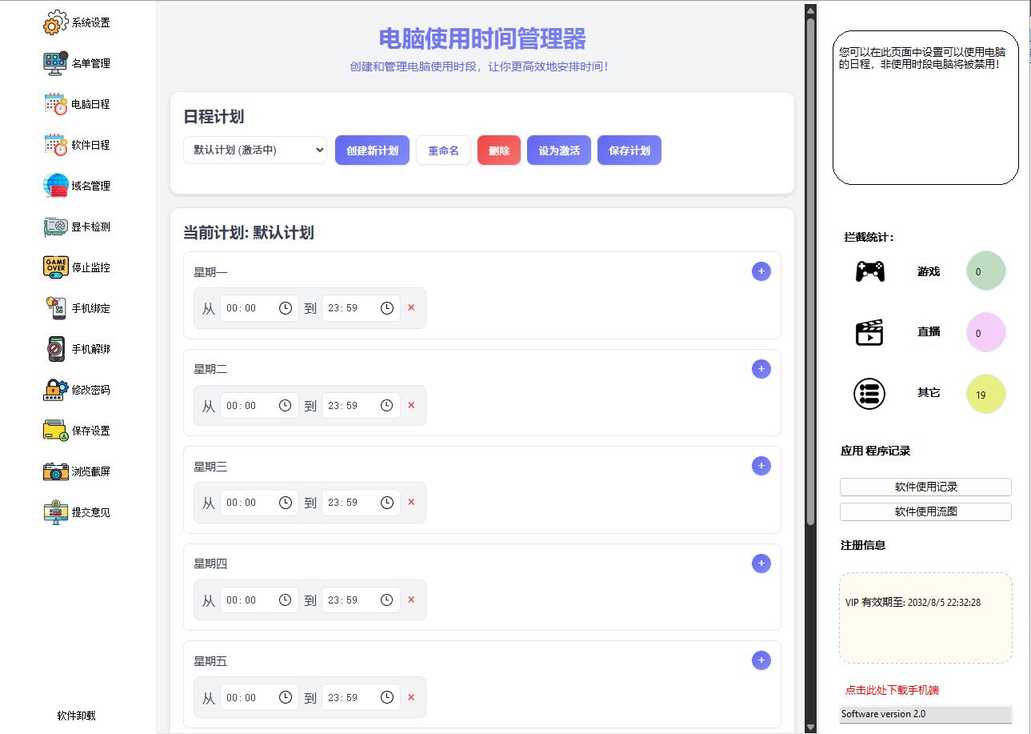
- 進入「電腦使用日程」。
- 在「日程計劃」中創建/重命名/刪除計劃,並將其一設爲激活(顯示「激活中」)。
- 在右側按星期設置多段可用時間,保存後生效。
若臨時放行,可在電腦端或手機端使用「停止監控」;若未到鎖屏時間卻未鎖屏,請覈對當前激活計劃與系統時間(參見說明書常見問題)。
軟件使用日程
爲指定軟件單獨設置可運行時間窗(例如僅週末某時段允許遊戲客戶端)。
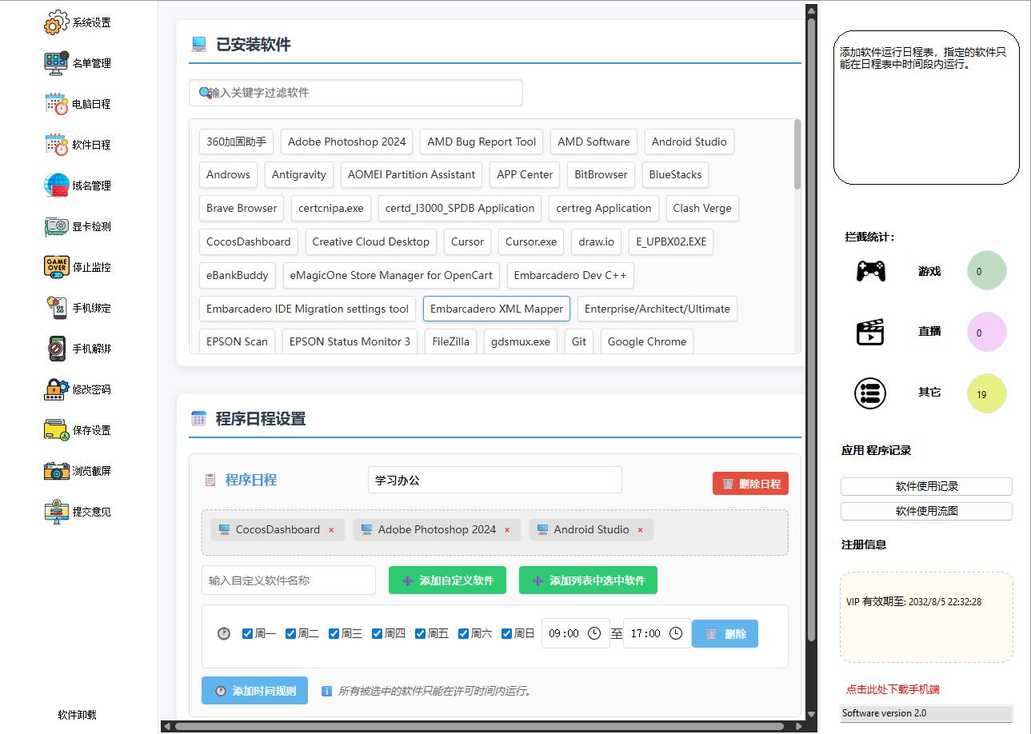
- 進入「軟件使用日程」。
- 在「已安裝軟件」中勾選要管控的程序(可多選)。
- 在「程序日程設置」中添加星期與起止時間,可爲同一軟件設多條規則。
- 若列表無目標程序,可「輸入自定義軟件名稱」或使用 .exe / 產品名稱描述添加。
- 完成後點擊「保存設置」。白名單軟件不受此限制。
域名管理(網站訪問控制)
管理可訪問網站:內置遊戲/視頻等分類庫,支持完全封禁或按時間規則限時訪問。
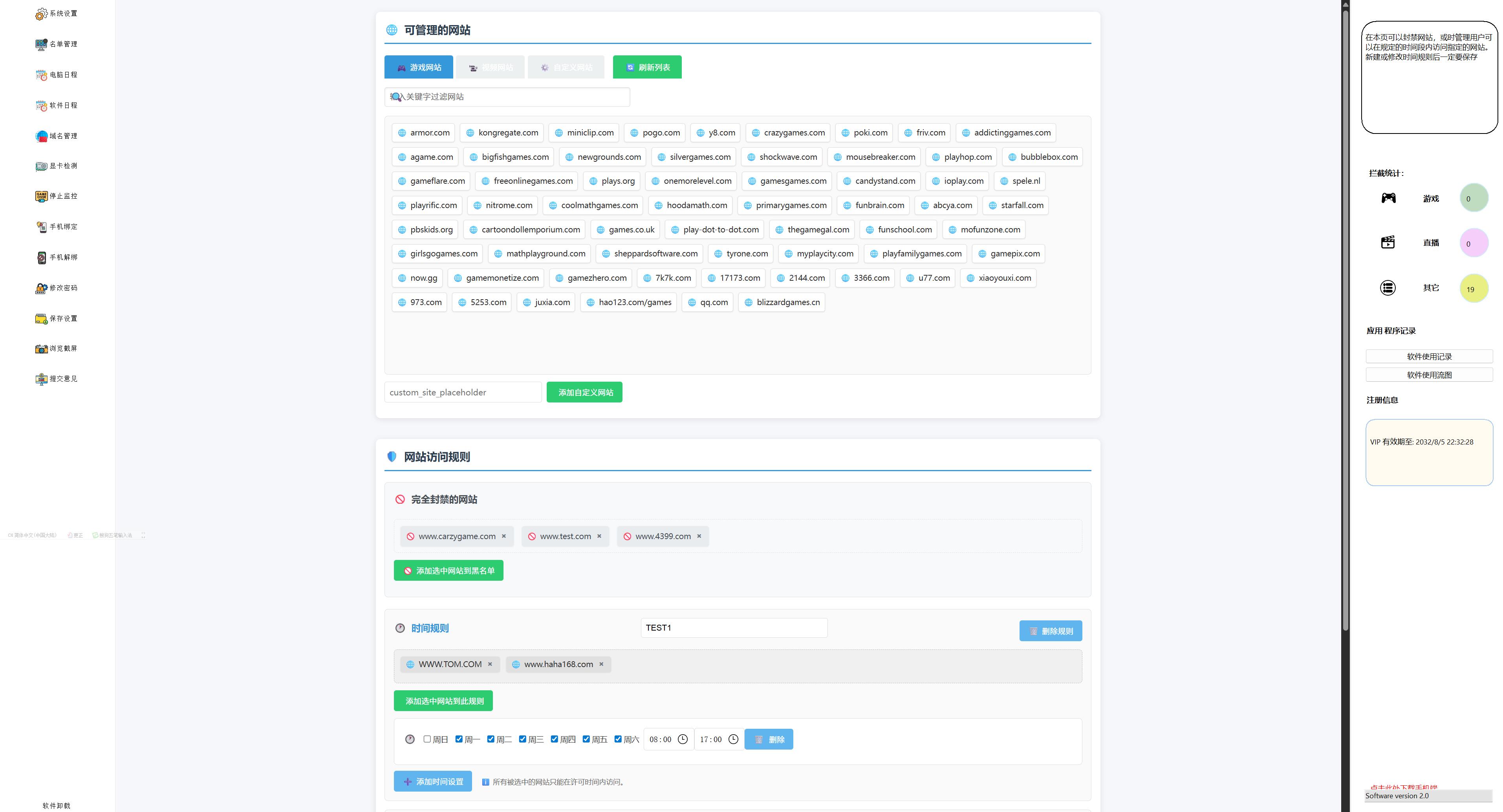
- 進入「域名管理」。
- 左側瀏覽內置分類與自定義網站,可用關鍵字過濾定位。
- 無預置域名時,使用「添加自定義網站」。
- 配置「完全封禁」或「時間規則」後保存;規則內站點僅在許可時段可打開。
內置常見遊戲站點便於快速配置;自定義時請填寫完整域名。
顯卡檢測與直播監控
用於建立 GPU 佔用基線,提升遊戲/直播高負載識別準確度;首次安裝或更換顯卡後建議執行一次。
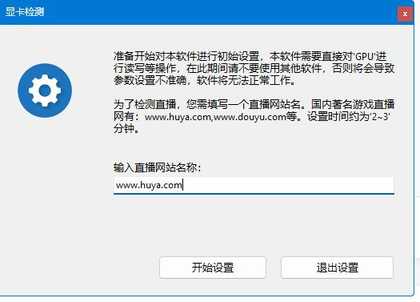
- 進入「顯卡檢測」。
- 在「輸入直播網站名稱」中填寫常用直播站(如虎牙等)。
- 點擊「開始設置」,系統將校準 GPU;過程中請勿運行其它高佔用顯卡程序。
- 約 2~3 分鐘完成並提示成功。
應用程序記錄與截屏查看
查看各軟件使用時長、啓動次數、時間軸流圖,以及(若已開啓)自動截屏,便於事後回顧。


- 軟件使用記錄:「應用程序記錄」→「軟件使用記錄」查看統計。
- 使用流圖:按時間軸查看應用切換與關聯。
- 瀏覽截屏:需在系統設置中開啓自動截屏;目錄可自定義,建議定期清理以節省磁盤。
賬戶安全與會員(電腦端)
- 修改密碼:在「修改密碼」中操作;遺忘將影響解綁等敏感操作。
- 會員信息:主界面「註冊信息」區域可查看 VIP 有效期,到期後部分高級能力可能受限。
- 下載手機端:點擊「點擊此處下載手機端」獲取家長 APP。
- 解除綁定:見上文「設備綁定」。
家長 APP 使用說明
以下對應安裝在家長自己手機上的管理端,與孩子電腦上的 PC 端配合使用;複雜規則也可在電腦本地管理界面配置。
說明正文參考著作權文檔中的「小羊防迷 APP使用說明」;界面以實際版本爲準。
一、軟件簡介
本 APP 幫助家長在手機上遠程瞭解與管理孩子電腦使用情況:查看截屏、設置時段、網站與關鍵字管控、接收告警等。PC 端需安裝在孩子使用的電腦上並保持可聯網。
隱私說明:PC 端與本 APP 的數據主要保存在您自己的設備中,系統不向運營方服務器傳輸您的個人隱私內容;手機與電腦之間爲點對點通信思路,更安心。
主要功能特點
- 設備綁定與管理:添加、管理已綁定的電腦
- 實時查看:查看電腦屏幕截圖,瞭解使用情況
- 時間控制:使用時長、日程與時段管理
- 內容管控:網站與應用規則、關鍵字與行爲監控聯動
- 消息中心:接收管控事件與系統消息
- 統計報告:使用時長與應用使用概況,並及時介入進行管控
- 臨時管控:關機、計時使用、遠程鎖定、截屏等
二、快速開始
2.1 用戶註冊
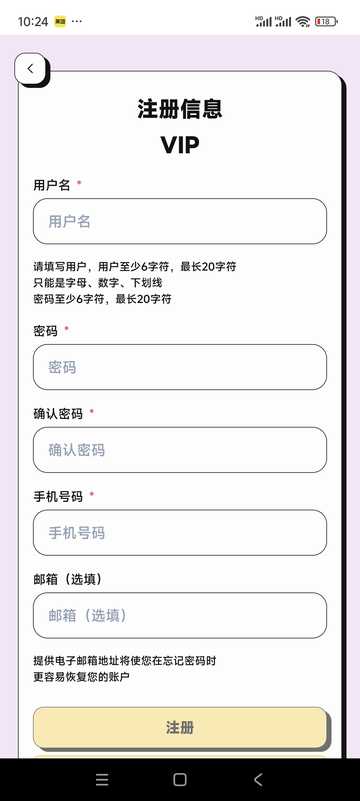
- 打開 APP,點擊「註冊」
- 填寫用戶名、密碼等信息
- 閱讀並同意用戶協議與隱私政策
- 點擊「註冊」完成賬戶創建
- 中國大陸用戶務必保證手機號正確以便找回密碼;其它國家及地區用戶可以不填寫手機號,但必須保證電子郵箱地址正確!此後將用此郵箱地址找回密碼。
2.2 用戶登錄
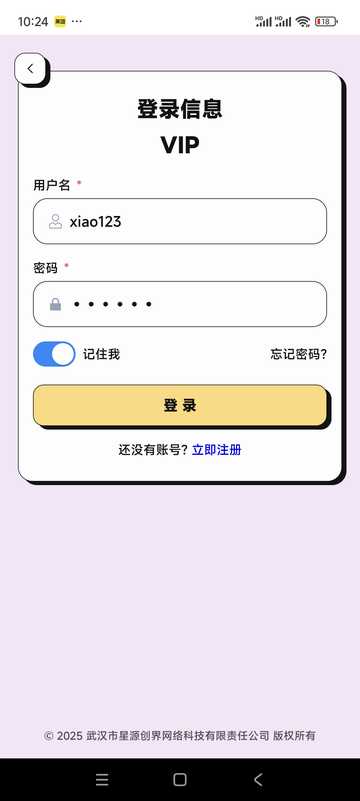
- 輸入用戶名與密碼
- 可選用「記住密碼」方便下次登錄
- 點擊「登錄」進入應用
三、首頁與設備管理
3.1 首頁
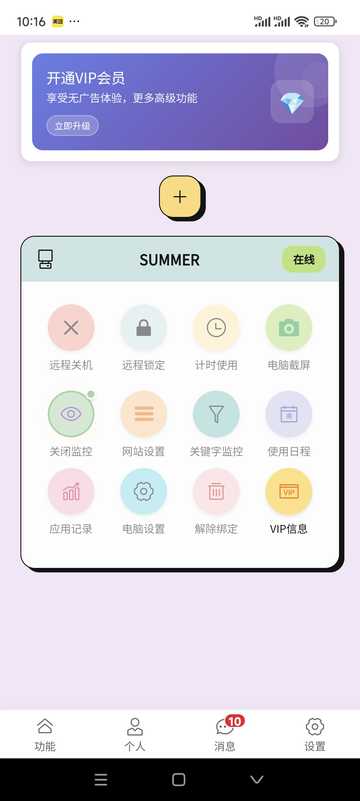
- 管理或添加已綁定的設備
- 查看設備在線狀態
- 通過「功能面板」快捷進入常用能力(關機、鎖定、截屏、日程等)
3.2 添加設備
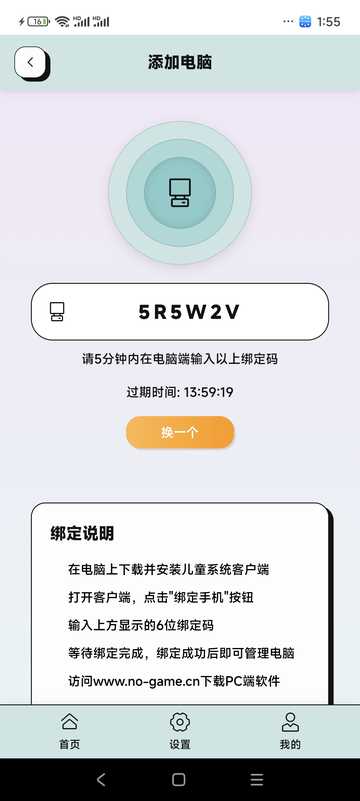
- 在首頁點擊「添加設備」或「+」
- 系統生成 6 位綁定碼(示例:5R5W2V)
- 在孩子電腦安裝並打開 PC 端,點擊「綁定手機」
- 在電腦端輸入上述綁定碼
- 等待綁定成功即可在手機上管理該電腦
3.3 電腦設置(部分選項)
對已綁定電腦可配置網絡/瀏覽器限制、OCR、行爲監控及觸發後的處置方式等(與 PC 端策略一致)。
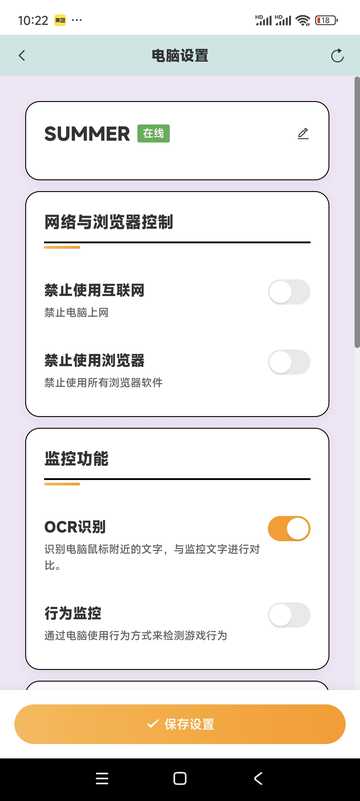
- 禁止互聯網 / 禁止瀏覽器
- OCR 識別(與關鍵字管控配合;約每 5 秒識別一次)
- 行爲監控(綜合鍵鼠、顯卡等判斷遊戲行爲)
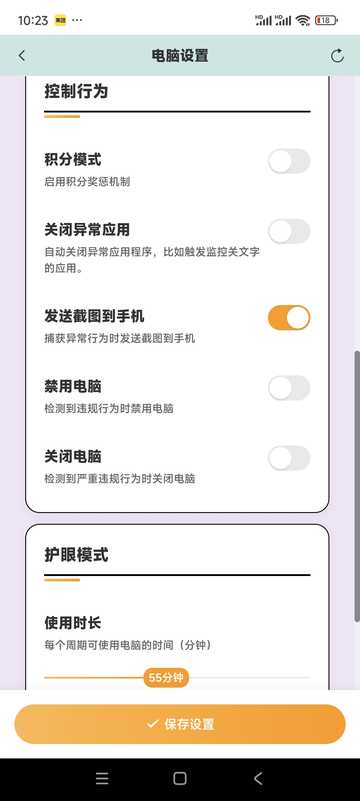
- 關閉異常應用、發送截圖到手機
- 禁用電腦、關閉電腦
- 護眼模式(超時鎖定強制休息)
- 「積分模式」爲預留項,當前版本未啓用
四、計時 · 遠程鎖定 · 截屏
計時使用
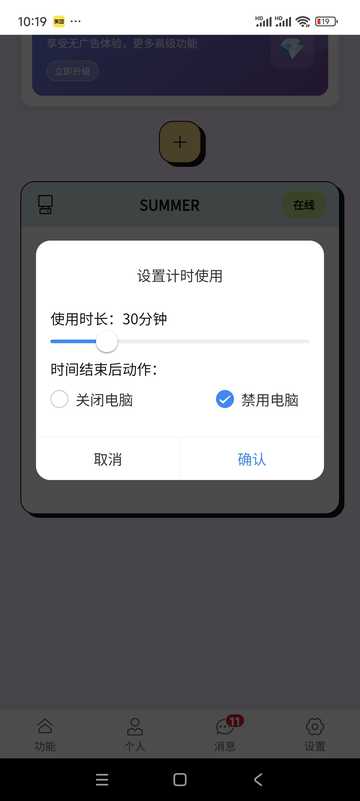
- 選擇設備
- 設置允許使用時長
- 開啓後到時將鎖定或按策略處理
遠程鎖定
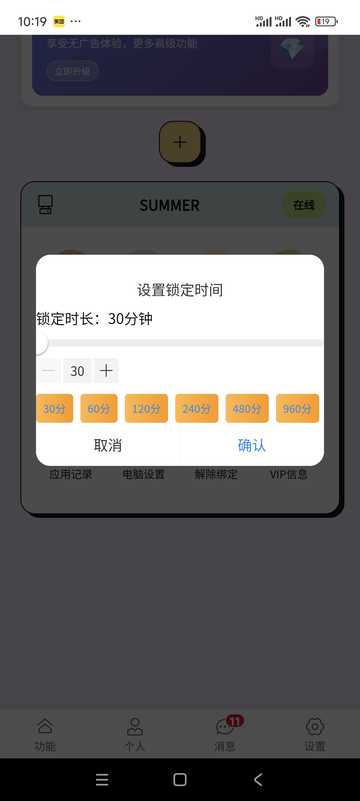
- 可定時鎖定
- 需要時在 APP 中遠程解鎖
電腦截屏
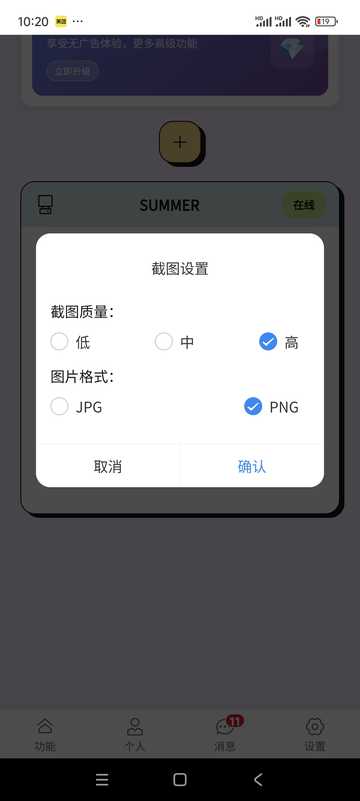
- 點「截屏」
- 查看當前畫面
- 可保存到手機
五、日程 · 應用記錄 · 關鍵字 · 網站
電腦日程
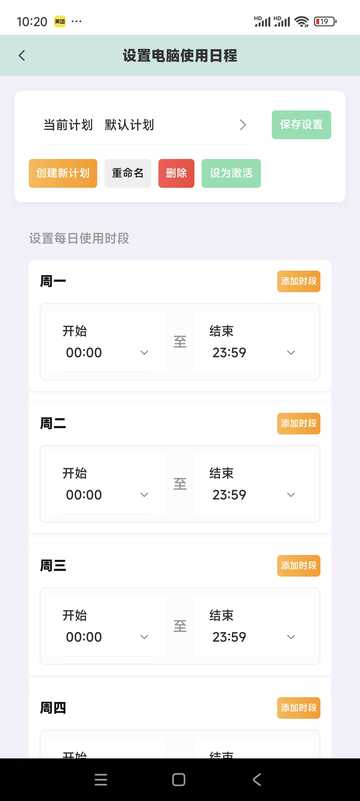
- 設置每日可用時段,超出可自動鎖定
- 同一天可配置多段時段
- 可按星期區分
- 可建多套計劃並按需啓用其中一套
應用記錄
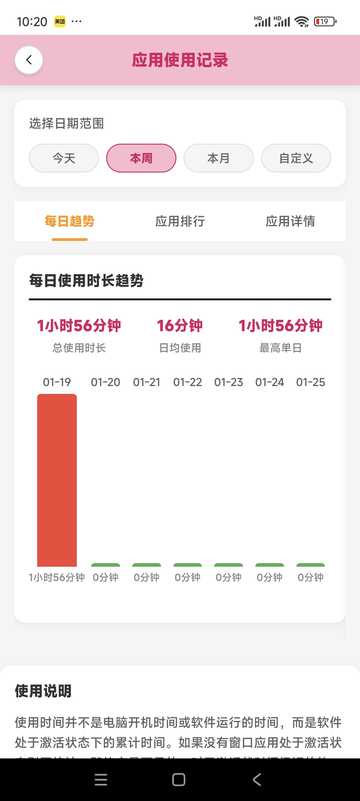
- 查看應用使用時長與頻率
- 可結合記錄再收緊策略
關鍵字監控
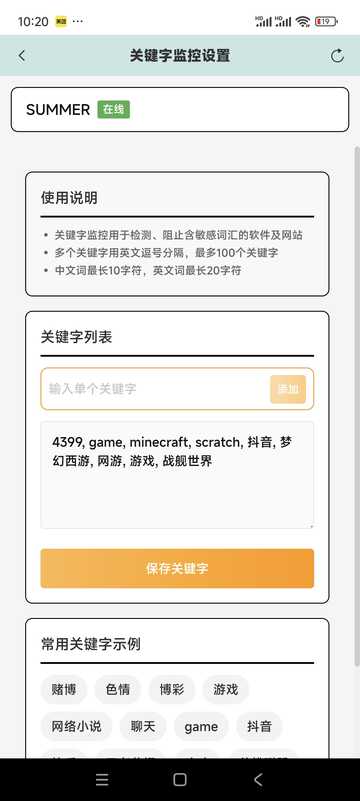
- 添加需監控的關鍵詞
- 中文最長約 10 字、英文約 20 字符(以軟件內提示爲準)
- 關鍵詞需出現在窗口標題中才易觸發;若要識別屏幕文字請配合電腦設置中的 OCR
- 識別在本地進行,降低隱私外泄風險
網站設置
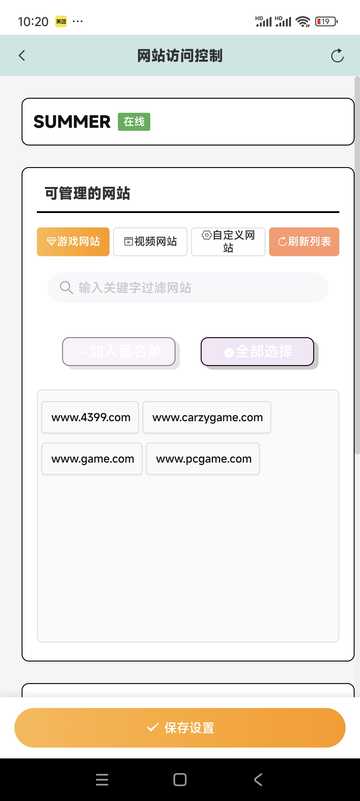
- 維護黑名單與可訪問時段
- 可將同類站點納入同一時間規則
- 若管控異常,請檢查 PC 端是否被安全軟件攔截並放行
六、VIP 信息
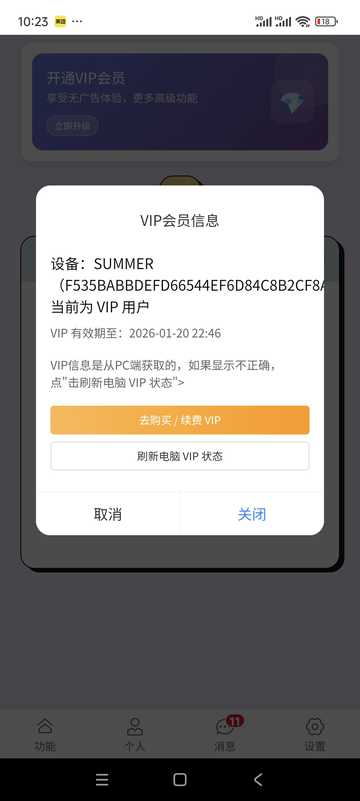
- 查看當前會員等級與到期時間
- 在套餐頁選擇合適的時長並完成支付(以軟件內支付方式爲準)
價格說明也可參見本站首頁「價格說明」區塊。
七、個人中心 · 消息 · 設置
個人信息
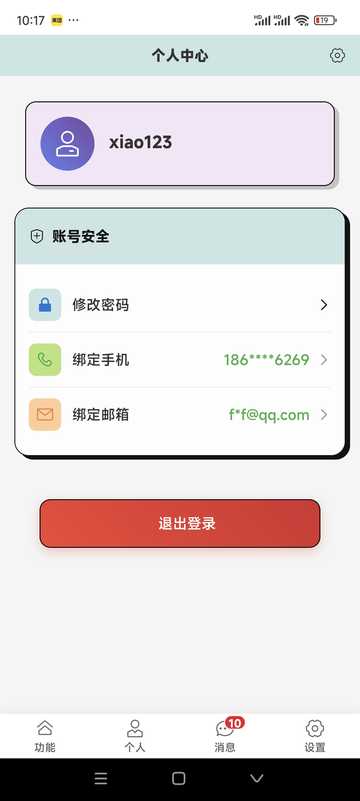
查看賬戶狀態;點選項目可修改密碼、更新聯繫方式或註銷賬戶(註銷將刪除綁定與記錄,請謹慎)。
修改個人資料
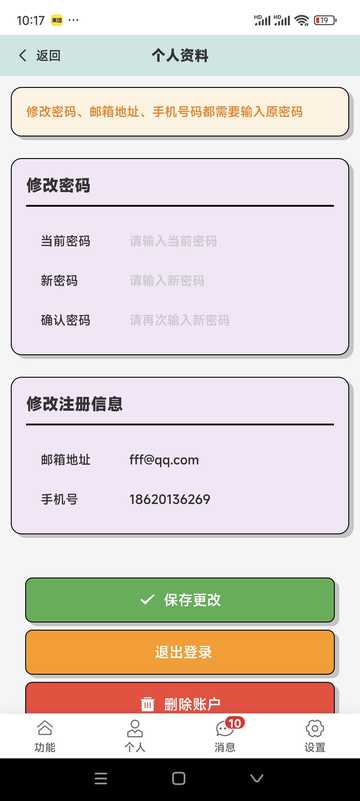
- 密碼一般爲 6 位以上字母+數字(以 APP 提示爲準)
- 中國大陸用戶務必保證手機號正確以便找回密碼;其它國家及地區用戶請保證郵箱正確
消息中心
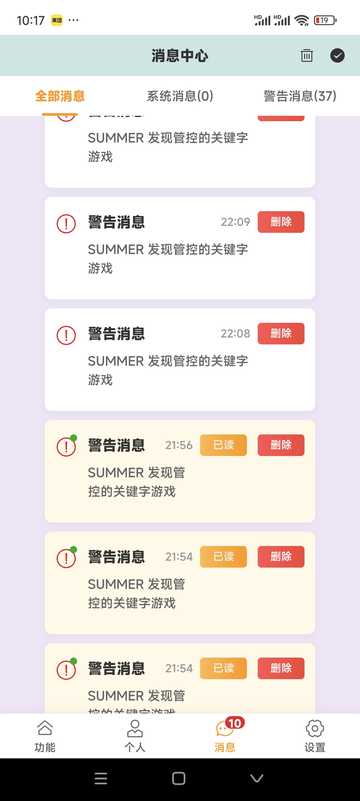
- 接收 PC 端管控事件提醒(若已開啓截圖推送等)
- 系統公告與通知
其它設置
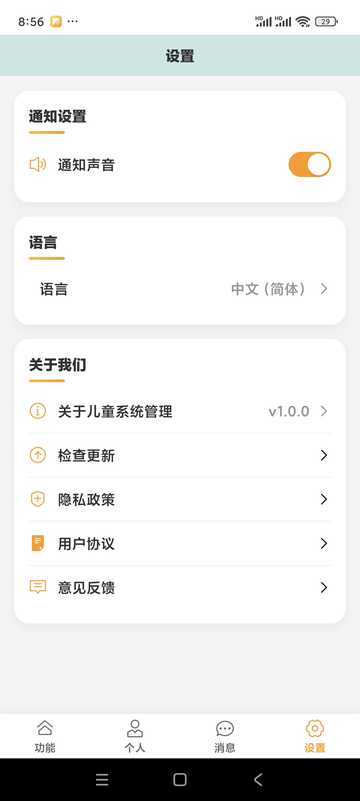
- 告警到達時是否播放提示音
- 多語言切換
- 檢查更新
- 意見反饋入口
八、技巧 · 注意事項 · APP 常見問題
使用技巧
- 定期查看使用統計,再與孩子一起調整規則
- 時間限制建議循序漸進,並提前溝通
- 養成查看消息中心的習慣,及時處理異常
- 請在合法合規與被監護人知情前提下使用
- 妥善保管賬號密碼
- 保持 APP 與 PC 端爲較新版本
APP 常見問題
- 如何添加設備?
- 首頁「添加設備」,按綁定碼在電腦端完成配對;電腦需已安裝 PC 端。
- 設備離線?
- 檢查電腦網絡、電源與 PC 端是否在運行;若被殺軟攔截請在殺軟中放行。
- 忘記密碼?
- 在登錄頁使用「忘記密碼」按手機號或郵箱流程重置。
- 會員與試用?
- 軟件內會標明試用與會員規則;過期後部分遠程設置能力可能受限,請以 APP 內提示爲準。
故障排除
常見問題及解決方案
可能原因:
- 操作系統損壞
- 殺毒軟件破壞,本軟件已過國際上10款主流殺毒軟件的檢測,但不保證所有殺毒軟件或後繼版本都能兼容。
- 系統兼容性問題,本軟件支持Windows 10 64 位操作系統,但不保證所有Windows 10 64 位操作系統都能兼容。
解決方案:
- 在殺毒軟件中添加白名單,或更新殺毒軟件到最新版本
- 檢查系統版本兼容性,如果系統版本不支持,請升級操作系統到最新版本
- 不要猶豫,聯繫我們獲取幫助!
可能原因:
- 網絡連接問題
- 賬戶信息錯誤
- PC端未正常運行
解決方案:
- 檢查網絡連接
- 確認賬戶信息正確
- 重啓PC端軟件
可能原因:
- 遊戲程序名稱變化
- 新遊戲未在數據庫中
- 設置過於嚴格
解決方案:
- 手動添加遊戲程序
- 更新軟件版本
- 調整識別設置
常見問題
FAQ
- 查看本使用指南
- 訪問幫助中心
- 發送郵件至 service@stellarorigin.com
- 添加微信:stellarorigin
- QQ:57100822